














Simplified Alarm Signal Routing for Monitoring Centres
The Old Way of Receiving Alarm Signals
If you run an alarm receiving centre, you've dealt with the traditional signal routing headache. A communicator on site sends alarm events to your monitoring software, but making that connection reliable requires a stack of network configuration: static public IP addresses, firewall rules to allow inbound traffic on specific ports, port forwarding through routers, and ongoing maintenance when ISPs change IPs or firewalls reset after updates.
Every new installation means coordinating with IT to make sure the signal path is open. Every network change risks breaking it. And when signals stop arriving, troubleshooting means working backwards through layers of infrastructure to find where the chain broke.
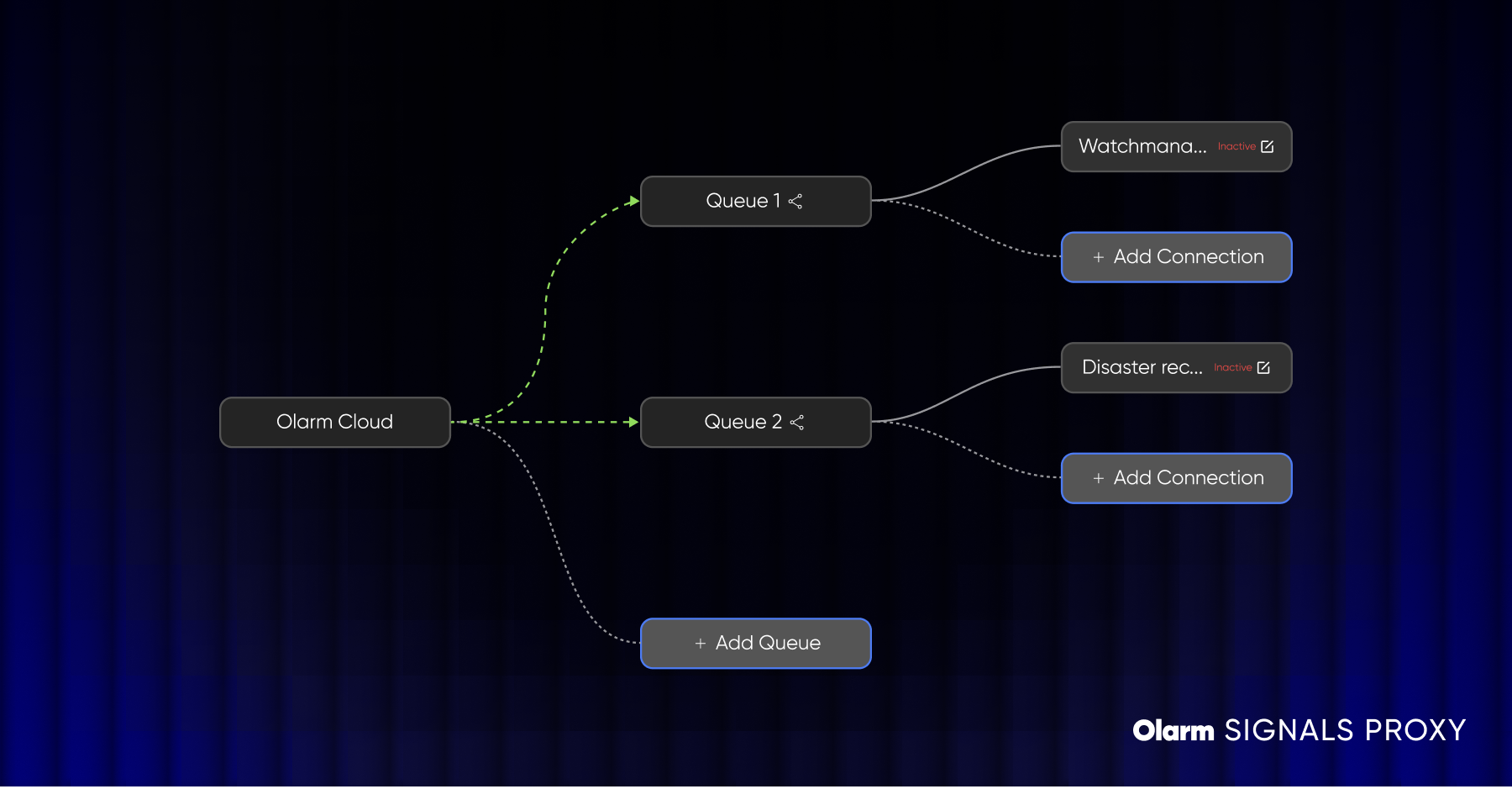
Olarm took a different approach with SIGNALS PROXY. Instead of requiring inbound connections to your network, it flips the model: your monitoring PC makes an outbound connection to the Olarm Cloud, and signals flow down that tunnel. No ports to open, no static IPs to maintain, no firewall rules to configure.
How SIGNALS PROXY Works
The architecture is straightforward. Olarm communicators (MAX and PRO) on customer sites send alarm events to the Olarm Cloud over their existing connectivity — WiFi, 4G, or 0G. The Olarm Cloud processes these signals and queues them for delivery to your monitoring software.
On your end, the SIGNALS PROXY application runs on a Windows PC in your control room. It establishes an encrypted outbound WebSocket connection to the Olarm Cloud and receives signals in real time. It then forwards those signals to your monitoring software over a local TCP connection using the protocols your software already speaks.
Because the connection is outbound from your network, there's nothing to configure on your firewall. The proxy handles authentication, encryption, and reconnection automatically.
Supported Protocols
SIGNALS PROXY speaks the industry-standard formats that monitoring software expects:
SIA DC-09 with SIA-CID and SIA-DCS payloads. This is the modern standard for IP-based alarm signal delivery, used by most contemporary monitoring platforms.
Sur-Gard Ademco Contact ID. The legacy standard that's still widely used, particularly in South Africa. If your monitoring software accepts Contact ID over TCP, SIGNALS PROXY works with it.
The signal format follows the standard CCCC Q EEE GG ZZZ structure — account code, event qualifier, event code, partition, and zone. Your monitoring software processes these exactly as it would signals from any other IP communicator.
Setting It Up
The full setup takes under 10 minutes:
Step 1: Create a connection in Command Centre. Go to Settings > Connections and click Add Connection. Give it a name, select the protocol (SIA DC-09 or CID), set the priority, and create a connection key. Copy that key.
Step 2: Install the SIGNALS PROXY application. Download it from the same Connections page in Command Centre. It runs on any Windows 10+ machine with at least 4GB RAM.
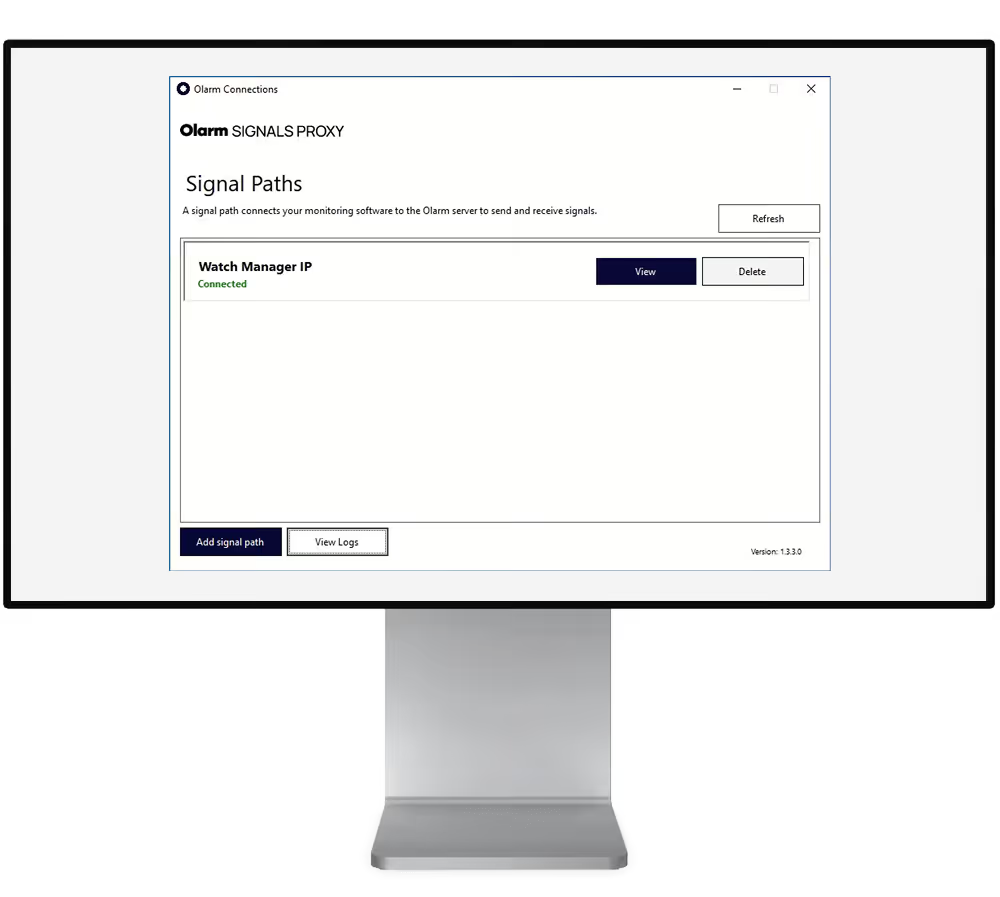
Step 3: Add a signal path. Open the proxy application and create a new signal path. Choose whether your monitoring software acts as a TCP Server (proxy connects to it) or TCP Client (proxy listens for its connection). Enter the relevant IP and port details.
Step 4: Paste the connection key. This authenticates the proxy with the Olarm Cloud and starts the signal flow.
That's it. Signals begin arriving as soon as devices have account codes set in Command Centre.
Why the Outbound Connection Model Matters
The technical distinction between inbound and outbound connections has real operational consequences:
No static IP dependency. If your ISP changes your public IP (which happens on many South African business lines), traditional signal routing breaks. With SIGNALS PROXY, your IP doesn't matter because you're making an outbound connection.
No firewall maintenance. Inbound firewall rules are a security risk and an ongoing maintenance burden. They need to be re-applied after firmware updates, network changes, or hardware swaps. SIGNALS PROXY requires no inbound rules at all.
Works behind NAT. Many South African business connections use carrier-grade NAT, which makes inbound connections impossible without a static IP. SIGNALS PROXY doesn't need inbound connectivity.
Self-managing. Partners manage their own connections entirely within Command Centre. There's no Olarm-side configuration needed, and no support ticket required to set up or modify a signal path.
Redundancy and Failover
Signal reliability is non-negotiable for monitoring businesses. SIGNALS PROXY is built with several layers of redundancy:
The proxy load-balances across Olarm's global data centres. If one goes down, connections automatically failover to another with no manual intervention and no configuration changes.
Connection loss is detected in near real-time. If the WebSocket drops, the proxy reconnects automatically and queued signals are delivered.
You can create multiple connections and signal paths for backup routing. If your primary monitoring software goes down, signals can route to a secondary system.
All of this happens transparently. Your control room operators don't need to monitor the proxy — it handles its own health.
Monitoring and Troubleshooting
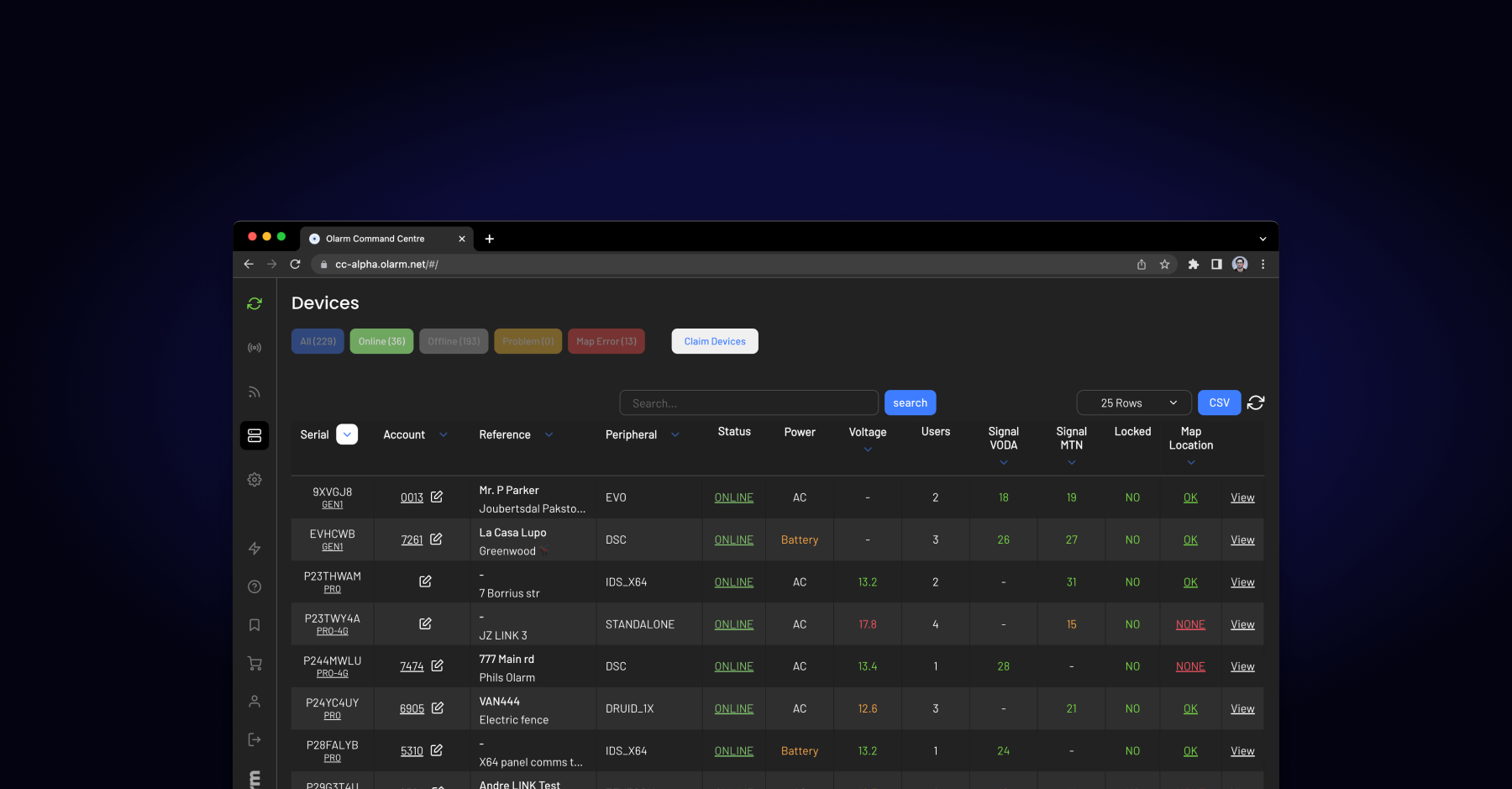
Every signal delivery, connection event, and error is logged in Command Centre under the Connections section. You can see exactly when signals were sent, whether they were acknowledged by your monitoring software, and if any delivery failures occurred.
Olarm also sends automatic email alerts for two common issues: incompatible connection types (sent daily or every 12 hours if a signal path can't receive data due to a protocol mismatch) and failed signal processing (sent on the same schedule if connections are failing due to configuration or network issues). Each alert includes a direct link to Command Centre for resolution.
What It Costs
SIGNALS PROXY is included with Olarm Command Centre at no additional cost. There's no per-connection fee, no signal volume charge, and no separate licensing. It's part of the standard Olarm Partner platform.
Getting Started
If you're already an Olarm Partner, you can set up SIGNALS PROXY today from your Command Centre dashboard. If you're evaluating Olarm for your monitoring business, register at olarm.com/become-a-partner to get access to Command Centre and start receiving signals within minutes of approval.
For detailed setup instructions, the Olarm Academy offers a dedicated Command Centre course that covers SIGNALS PROXY configuration, troubleshooting, and best practices for high-availability monitoring environments.
Recent news
What Is Olarm Command Centre? A Guide for Monitoring & Response Companies
Smart Security for Estates, Complexes & Gated Communities in South Africa