










Olarm Video: Faster, More Reliable Camera Streaming
Olarm Video Just Got Faster
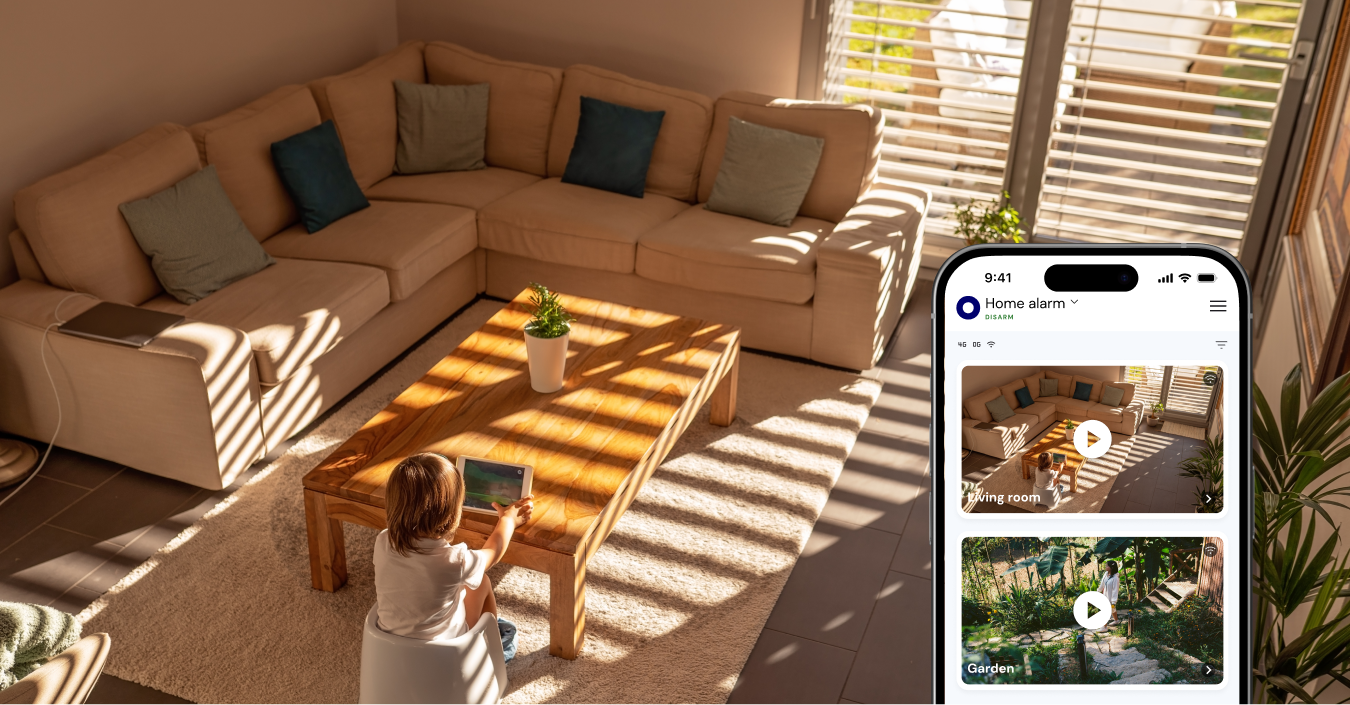
Olarm MAX firmware V1.8.0 brings a significant upgrade to Olarm Video — the feature that lets you view your security cameras directly from the Olarm App, alongside your alarm controls. This update focuses on two things that matter most for video: speed and reliability.
What Changed
Faster video session connections
V1.8.0 upgrades how the Olarm MAX initiates video streaming sessions with your cameras. The connection process has been reworked to start faster and more reliably, particularly in environments with slower or fluctuating network conditions.
In practical terms, this means when you tap to view a camera in the Olarm App, the feed loads noticeably quicker. This matters most in the moments after an alarm event, when you need to see what's happening right now — not wait for a stream to buffer.
More reliable network recovery
The Olarm MAX connects to your network via dual-SIM 4G and WiFi. In real-world conditions, these connections can drop or switch — your WiFi router reboots, your cellular signal fluctuates, or your network provider has a brief outage. Previously, these interruptions could cause video sessions to fail or hang.
V1.8.0 introduces better handling for network transitions. If your connection drops and recovers, or if the Olarm MAX switches from WiFi to cellular (or vice versa), video sessions are now better equipped to resume without failing. This means fewer "connection lost" errors and more reliable access to your camera feeds when you need them.
What Is Olarm Video?
For those new to the feature: Olarm Video lets you connect IP cameras to your Olarm MAX and view live feeds from within the Olarm App. It's designed to work alongside your alarm system, not as a standalone CCTV platform.
The core use case is alarm verification. When your alarm triggers, you get a push notification. You open the Olarm App, see which zone was activated, and tap to view the camera covering that area. In seconds, you can see whether it's a genuine intrusion or a false alarm — before your armed response company arrives.
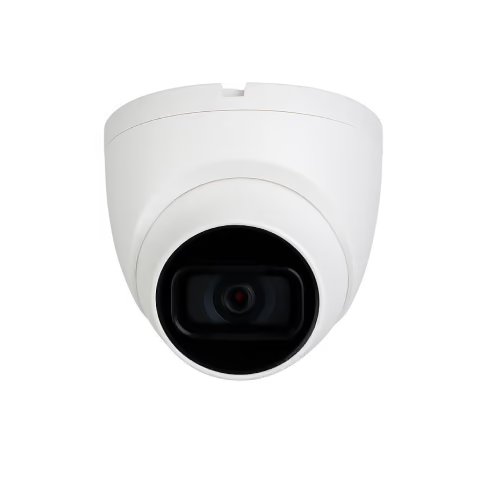
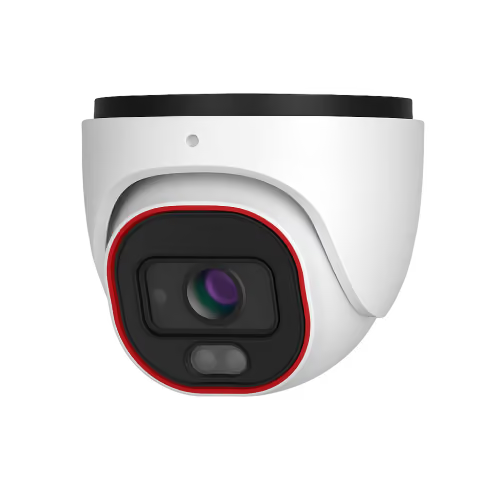
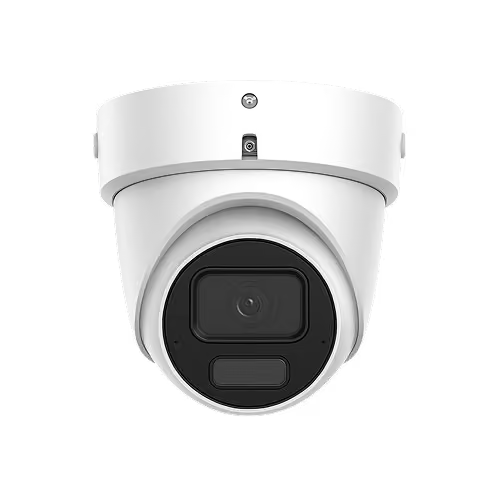
Olarm Video supports cameras from Hikvision, Dahua, Provision, and other ONVIF-compatible brands. The Olarm MAX handles the video relay locally, so your camera feeds don't need to go through a third-party cloud service.
The Bigger Picture
Olarm Video has been evolving steadily over the past year. Here's how the video capability has progressed:
- V1.5.0 (Sep 2024): Initial Olarm Video integration launched alongside IDS 805 support
- V1.5.1 (Sep 2024): Bug fixes for playback handling and RTSP error management
- V1.5.2 (Oct 2024): Additional error codes for diagnosing failed video sessions, more robust session termination
- V1.6.0 (Oct 2024): Increased WiFi data transfer rates specifically to improve video performance
- V1.6.2 (Nov 2024): Added support for special characters in camera passwords, expanding compatibility with more camera brands
- V1.8.0 (May 2025): Faster connections and network recovery — this update
Each update has made Olarm Video more stable, more compatible, and faster. The trajectory is clear: video verification is becoming a core part of the Olarm experience, not just an add-on.
Why Video Verification Matters
False alarms are a significant problem in the security industry. They waste armed response resources, erode trust in alarm systems, and in some jurisdictions can result in fines for repeat offenders. Video verification addresses this directly by giving homeowners and response companies visual confirmation of what triggered the alarm.
For homeowners, it means peace of mind. You can check your cameras before panicking about a notification. For security companies, it means dispatching resources based on confirmed events rather than ambiguous alarm signals.
Getting Started With Olarm Video
If you have an Olarm MAX and a supported IP camera:
- Ensure your Olarm MAX is on firmware V1.8.0 or later (updates are delivered over the air)
- Add your camera through the Olarm App — you'll need the camera's local IP address, RTSP port, username, and password
- Position the camera to cover the zones most likely to trigger alarms — entry points, driveways, or garden areas
- When an alarm event occurs, tap the camera icon in the Olarm App to view the live feed
For detailed setup instructions, visit the Olarm Support Centre or ask your installer to configure it during your next service visit.
Recent news
What Is Olarm Command Centre? A Guide for Monitoring & Response Companies
Smart Security for Estates, Complexes & Gated Communities in South Africa