












Managing 1,000+ Alarm Sites From One Dashboard
When Your Device List Outgrows a Spreadsheet
Small alarm companies can get by with a handful of devices and a good memory. But once you're managing hundreds or thousands of Olarm communicators across different clients, areas, and technicians, the operational complexity scales fast. Which devices are offline? Which ones are still on 2G? Who has weak SIM signal? Which sites had firmware updated this month and which are still running old versions?
Olarm Command Centre's Devices page is built to answer all of these questions from a single view — without exporting anything to a spreadsheet or calling your technicians for status updates.
What You See at a Glance
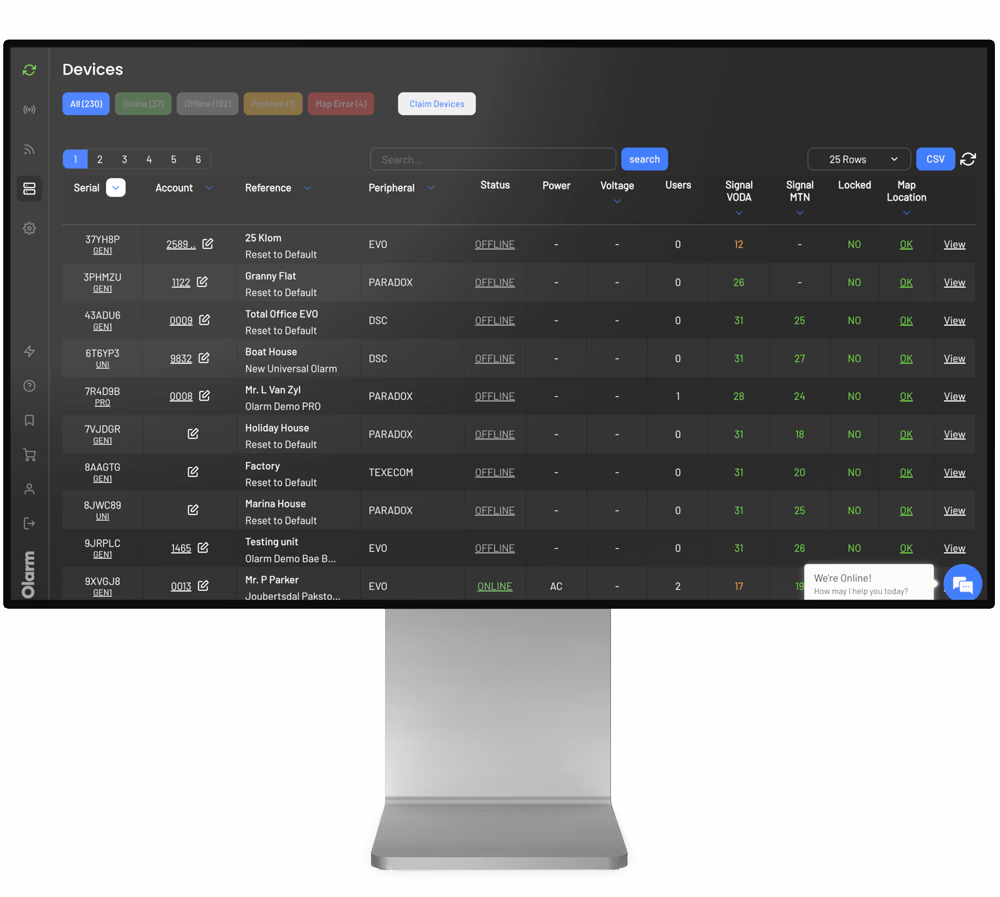
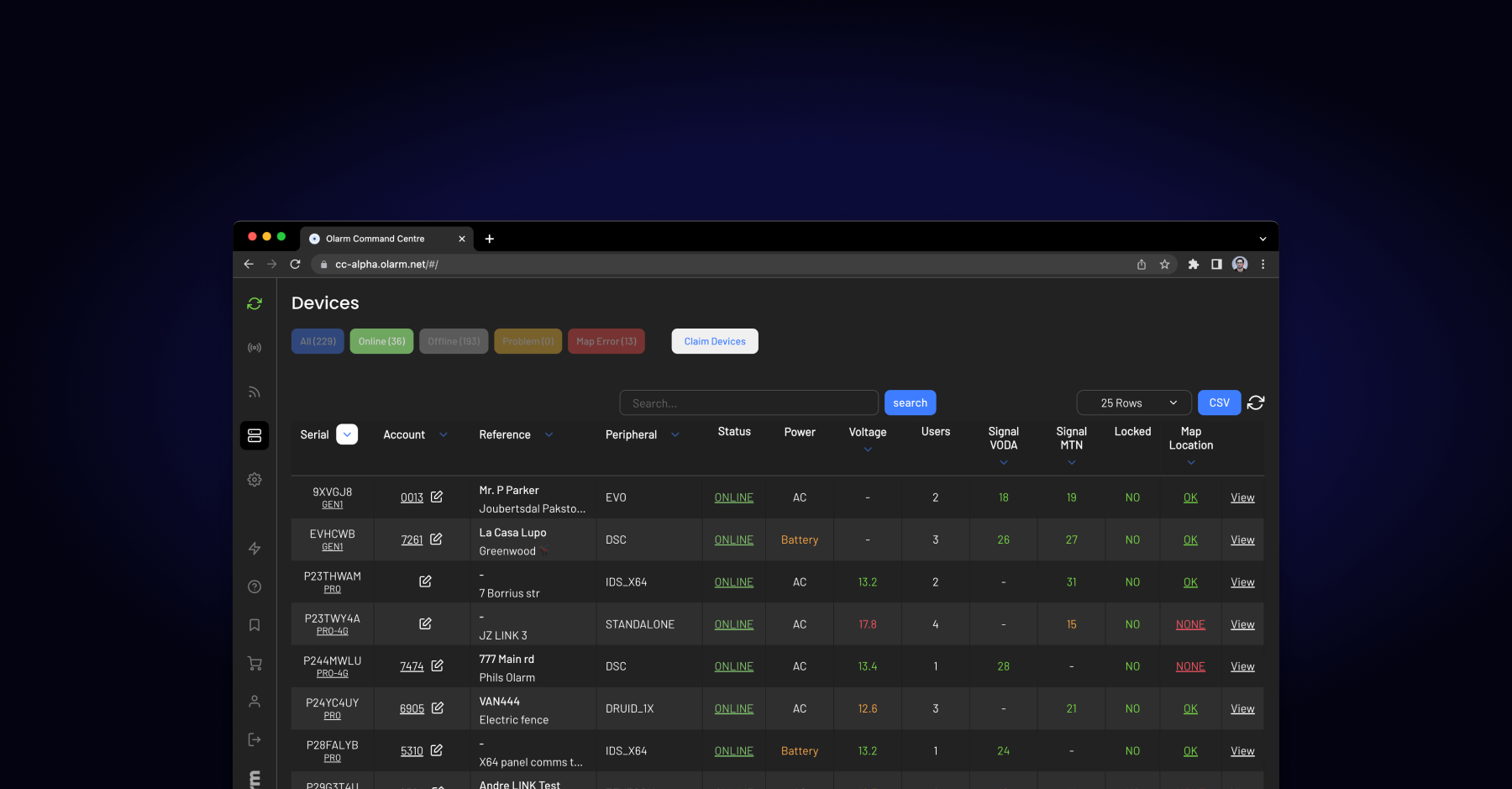
Every Olarm communicator your company has claimed appears on the Devices page with real-time data across several columns:
Status tells you whether the device is online, offline, or in a problem state. For a control room, this is the most critical indicator — an offline device means a site isn't being monitored.
Connectivity shows which connection types are active: WiFi, SIM 1, SIM 2, or 0G (Sigfox). If a device has multiple paths, you can see which are live and which have dropped.
Power indicates whether the device is running on AC mains or has switched to battery backup. During loadshedding, this column lights up — but it's also an early warning for sites where the power supply has failed permanently.
SIM Signal Strength is displayed on a 0–32 scale for each SIM slot. Devices showing orange are on weak signal and may need an antenna upgrade or SIM swap. This is one of the most overlooked causes of intermittent connectivity issues.
Locked shows whether end-user app access has been locked or unlocked. Useful for confirming that suspended accounts are actually locked out.
Map indicates whether the device has been geolocated. Devices marked "None" haven't been plotted yet; "OK" means the location is set; "Outside" flags devices that are outside your assigned territory.
Filtering and Finding Devices
Search works by serial number, account code, or reference name. But the real power is in the filters.
The 2G Only filter instantly isolates every device still running on 2G networks. With 2G shutdowns progressing in South Africa and other markets, this is essential for planning your upgrade rollout. You can see exactly how many 2G devices you have, where they are, and prioritise replacements.
Filtering by connectivity type, power state, or status lets you build operational views: "show me all devices currently on battery" during a loadshedding cycle, or "show me all offline devices" for your morning health check.
Firmware Management Across Your Fleet
Keeping firmware current across hundreds of devices is a pain point for any company that manages hardware at scale. Outdated firmware means missing out on new panel support, bug fixes, and security patches.
From the device detail view in Command Centre, you can initiate a firmware update with one click. The update is pushed over the air (OTA) and typically completes in under 10 minutes. Progress is shown in real-time, and you're notified when the download is complete.
Best practice is to batch updates by area or client group. Run your morning checks, identify devices on older firmware, and push updates to a batch while monitoring progress. The device needs to be online, powered, and the alarm system should be disarmed during the update.
Settings Migration for Hardware Swaps
When you replace an Olarm communicator — whether it's an upgrade from PRO to MAX, a hardware failure swap, or a 2G replacement — you don't want to reprogramme the new device from scratch. Settings Migration transfers the critical configuration from the old device to the new one in seconds:
The device subscription, area assignments, zone labels, app users, PGM settings, master and UDL codes, and the activity log all carry across. Open the new device in Command Centre, go to Migrate Settings, enter the old device's serial number, and click Migrate. Done.
For companies running large-scale 2G replacement programmes, this saves hours of per-device configuration time.
Territory Mapping for Response Companies
Armed response companies don't just manage devices — they manage geographic territories. Command Centre lets you plot every device on a map and define your response zones. The monitoring dashboard then shows real-time alarm events overlaid on your territory, so operators can see exactly where an incident is happening relative to patrol vehicles and response teams.
Device locations can be set by searching for an address or dragging a pin on the map. Each device's map status tells you whether it falls inside your territory ("OK"), hasn't been plotted yet ("None"), or sits outside your assigned area ("Outside"). The "Outside" flag is particularly useful for catching devices that were claimed by mistake or belong to a client outside your coverage area.
Event Logs for Auditing and Incident Investigation
Every Olarm MAX stores up to 1,000 events — a combined history of the Olarm device's signals and the events recorded by the alarm system. You can download this log as a CSV file directly from Command Centre for analysis in Excel or Google Sheets.
This is invaluable for incident investigation. When a client disputes a response time or claims their alarm wasn't working, the event log provides a timestamped, objective record of exactly what happened: when the alarm triggered, when the signal was sent, and what the system status was at every point.
Account Codes and Signal Routing
For monitoring companies, account codes are the link between a device and your monitoring software. Each device gets a main account code and can have separate codes per partition. These must match what your monitoring platform expects — mismatches mean signals arrive but can't be identified.
Command Centre highlights duplicate account codes in red, making it easy to catch clashes before they cause confusion in your control room. Setting account codes correctly during device onboarding is one of the most important steps in the setup process.
Scaling Without Scaling Headcount
The operational advantage of Command Centre at scale isn't any single feature — it's the compound effect. When your morning health check takes 5 minutes instead of an hour. When a 2G replacement programme can be planned from a filtered device list instead of a spreadsheet audit. When firmware updates are pushed remotely instead of requiring site visits. When new client onboarding takes minutes instead of days.
For a company managing 1,000+ sites, these efficiencies translate directly to headcount savings, faster service delivery, and fewer dropped balls.
Olarm Command Centre is included with every Olarm partnership at no extra cost. Register at olarm.com/become-a-partner to get started.
Recent news
What Is Olarm Command Centre? A Guide for Monitoring & Response Companies
Smart Security for Estates, Complexes & Gated Communities in South Africa