

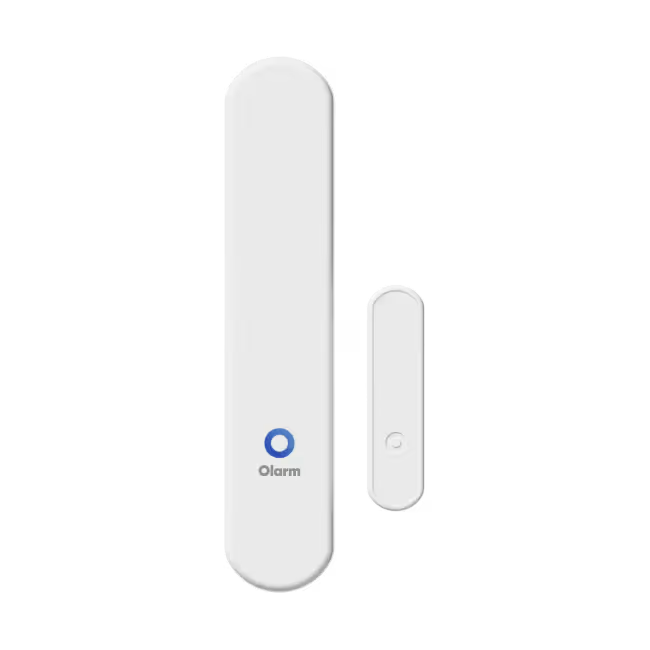
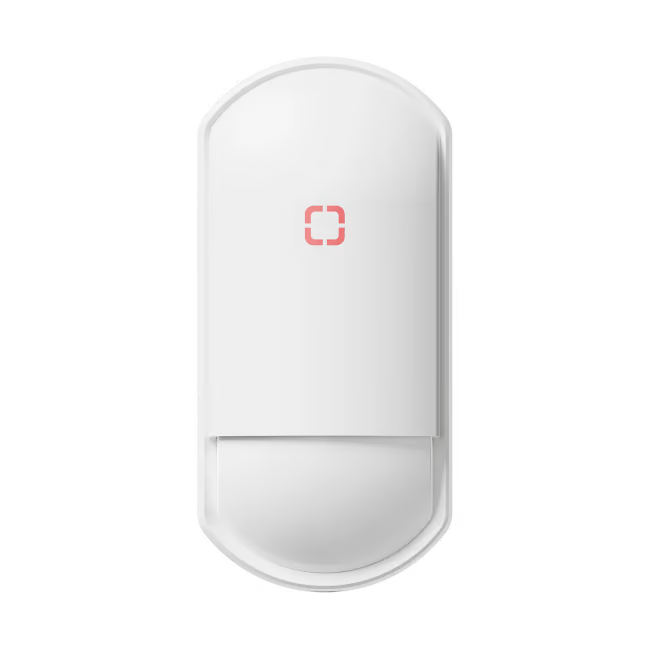
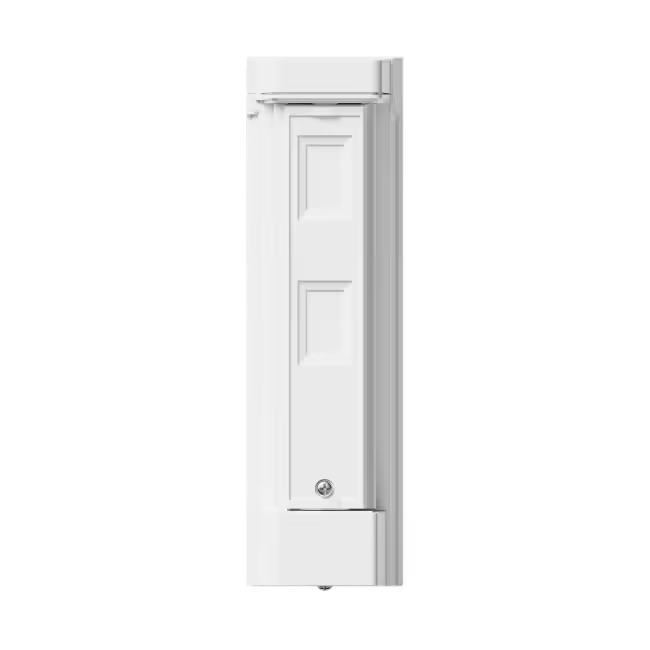
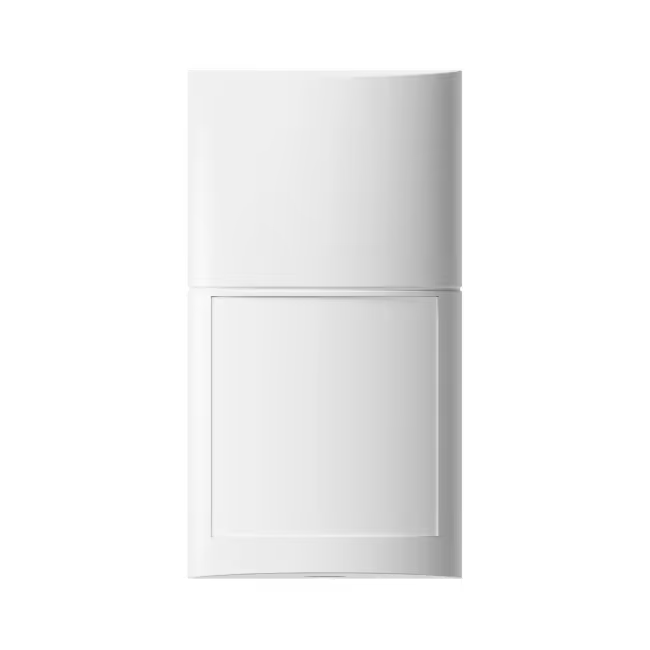
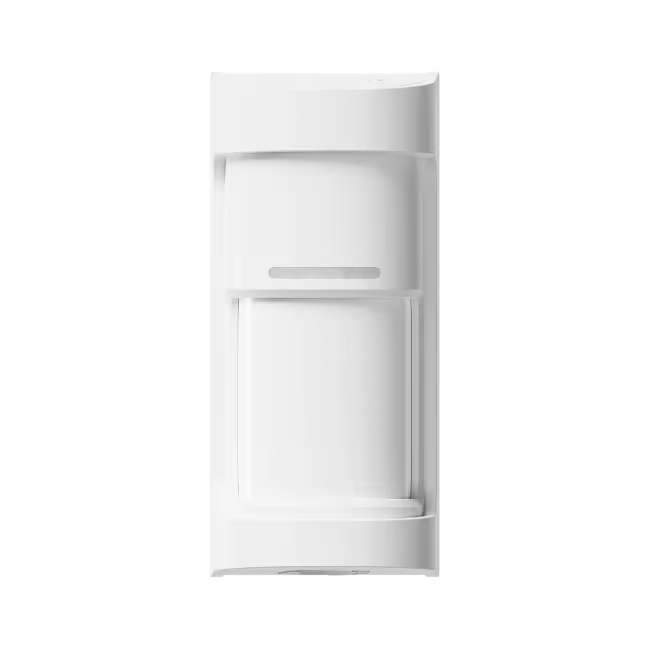


Olarm WingX

Powered by the Optex BXS-R

View Datasheet
View Optex Guide

Step 1

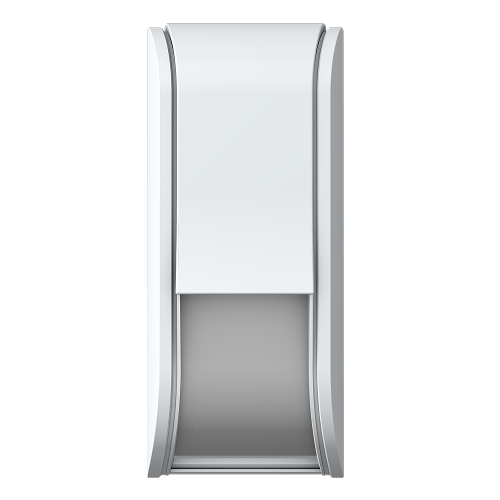
Remove the front lid

Use a flathead screwdriver to unlock the lid, then remove.

Step 2

Remove the detection unit

Using the blue-touch markers, pull out the detection unit to access the Olarm CONNECT.

Step 3

Add your device & configure zone

Scan the QR code on the Olarm CONNECT to add the device, then configure your zone and detector settings.
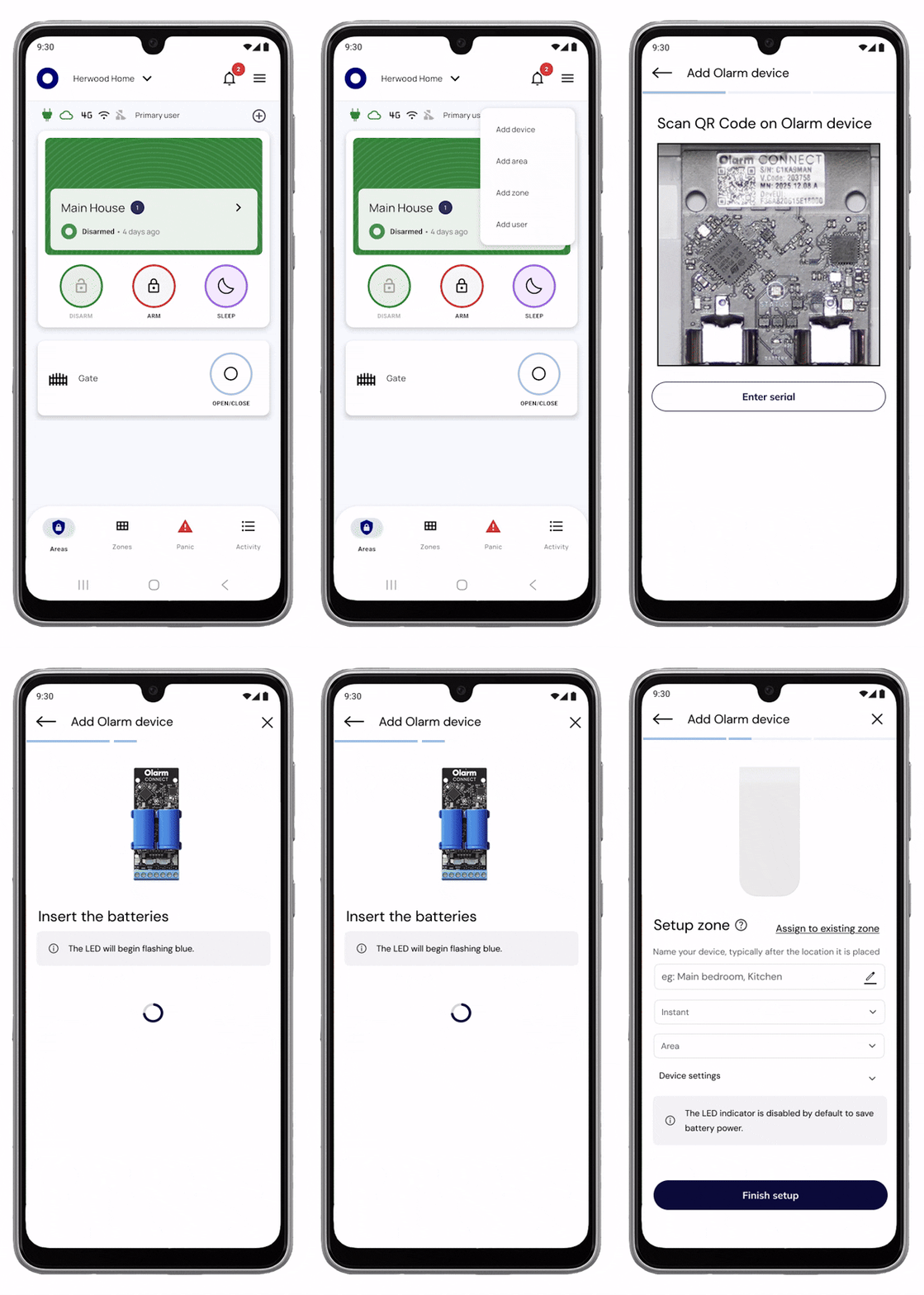
Step 4

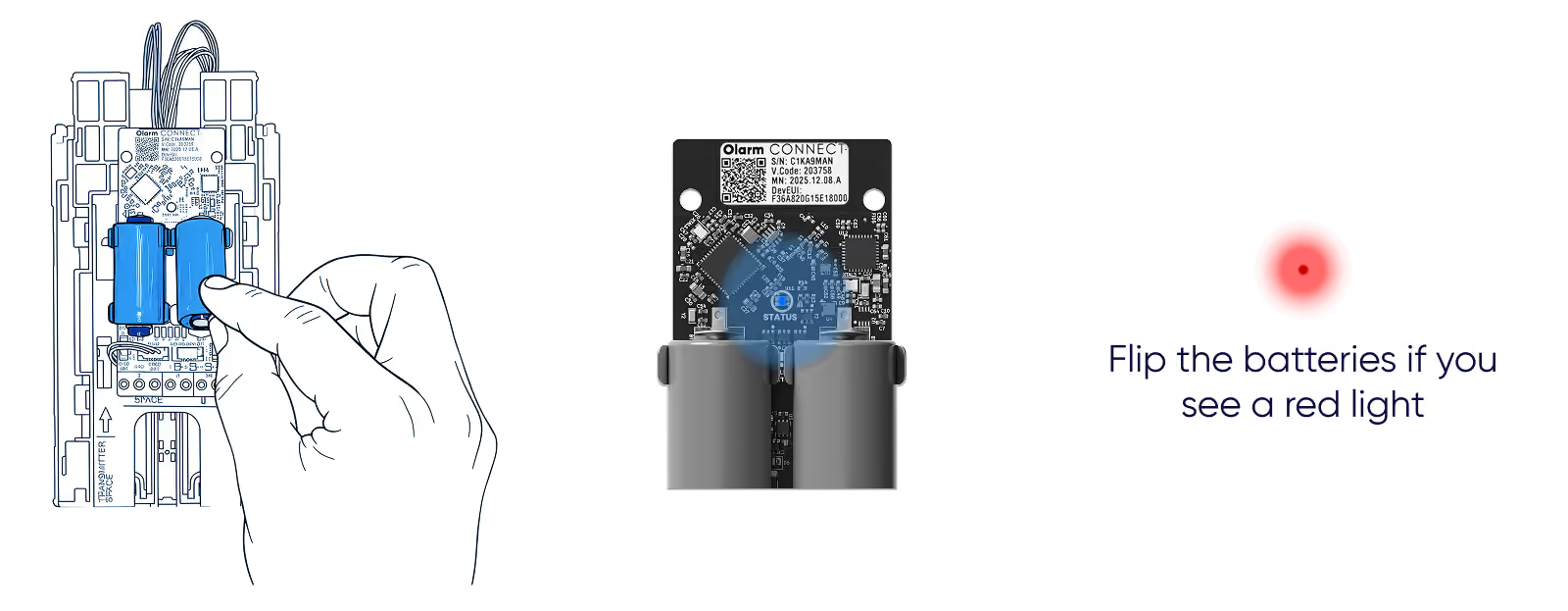
Insert the batteries

Place the batteries into the Olarm CONNECT. The status LED will flash blue when powered on correctly. Flip the batteries if you see a red light.
Step 5

Installing the Olarm WingX

Choose your mounting scenario based on the wall conditions: with or without obstructions.

Step 5.1

Against a wall without obstructions

Mount the Olarm WingX with a clear line of sight along the surface.

Step 5.2

Against a wall with obstructions

Adjust the Olarm WingX to avoid detection inteference from objects along the wall.

Step 6

Mount to the wall

Position the backbox against the mounting surface at your desired location.

Step 6.1

Secure the backbox

Use the built-in level to ensure correct alignment, then fasten with suitable screws.

Step 6.2

Fasten the backbox tightly

Ensure the tamper switch is sufficiently compressed against the mounting surface.

Step 6.3

Re-insert the detection unit

Insert the bottom of the detection unit first, then pivot it into the backbox.

Step 7

Adjust the detection range

Slide the blue clips up or down to set the left and right detection range for your environment.

Step 8

Close the front lid

Press the lid firmly until it clips into place to prevent potential tampering.

Tips

Reduce nuisance alarms

Avoid these common installation mistakes that can trigger nuisance alarms.
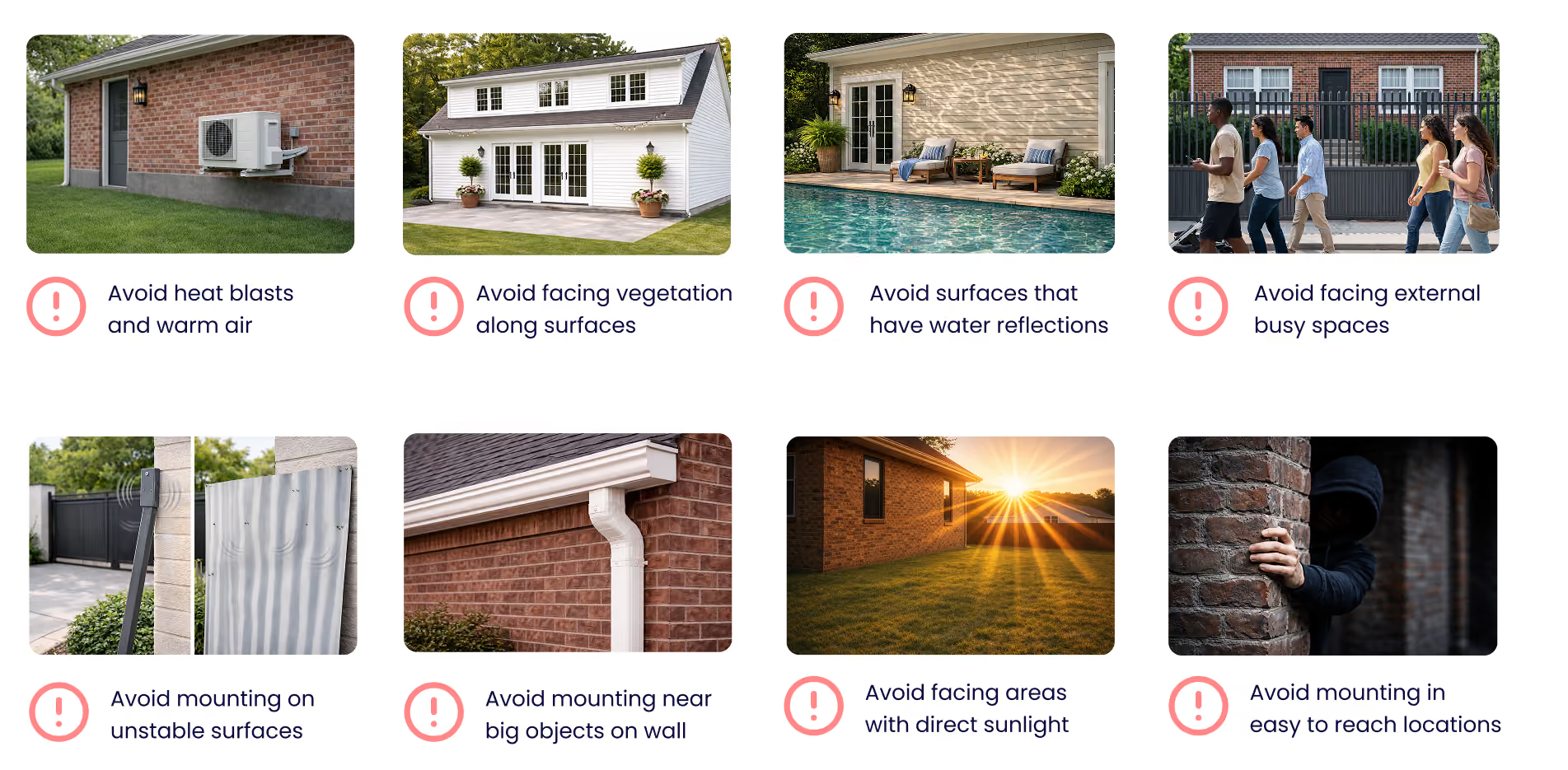
Tips

Mounting mistakes to avoid

Mounting too low may impact lower detection & trigger more frequently; mounting too high may miss intruders & create dead zones.

Troubleshooting

LED states

Understand what each LED pattern means on your Olarm WingX and Olarm CONNECT.
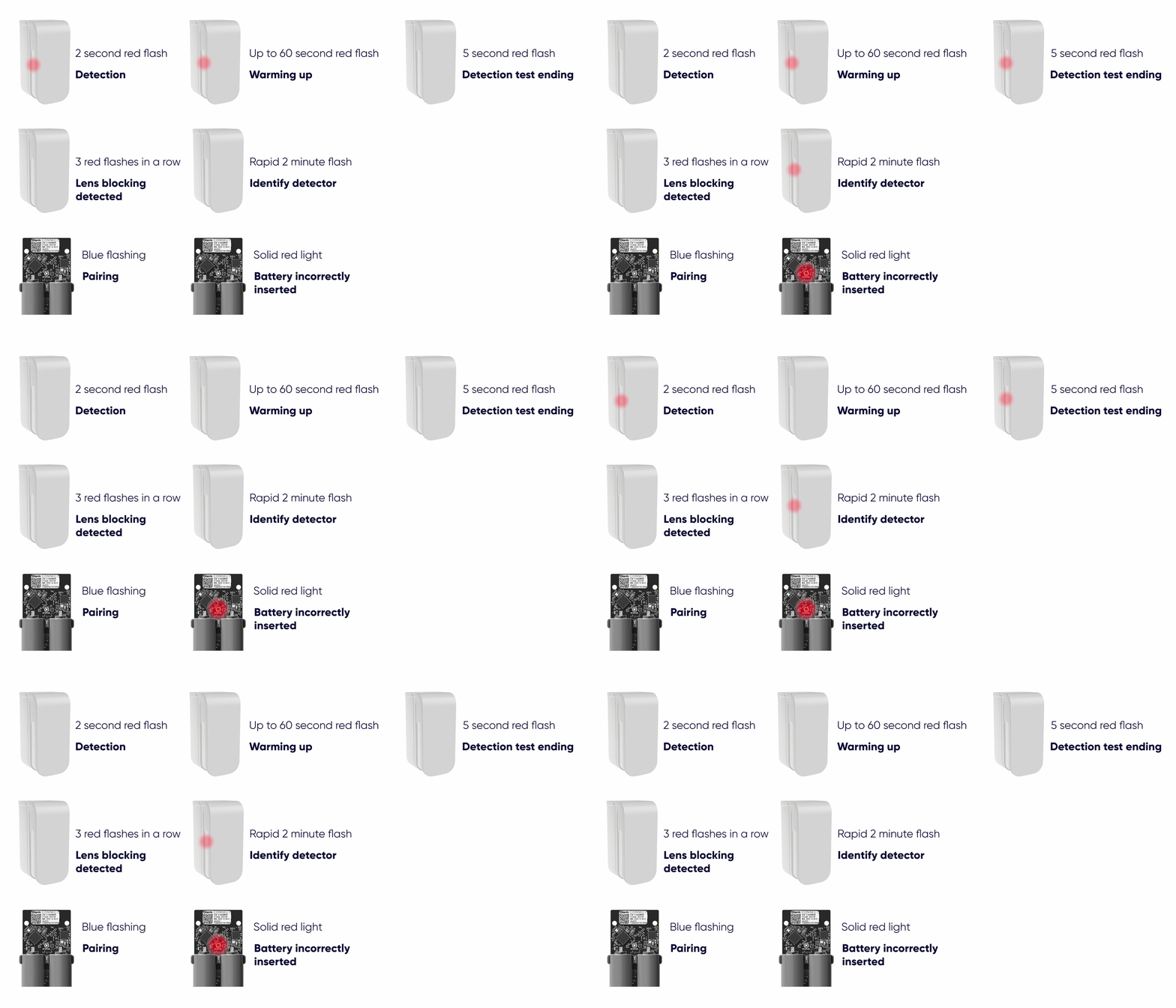
Step 9

Perform a Detection Test

Enable a Detection Test in-app or by opening and closing the cover, then walk through the area to verify coverage. The red LED will flash when movement is detected.

Troubleshooting

Why is the Olarm WingX not flashing during warm-up after I insert the batteries?
  • Confirm the 2x CR123A batteries are inserted correctly.
  • Remove batteries, wait 10 seconds, then reinsert.
Why does the Olarm WingX warm-up flashing not stop (keeps flashing past ±60 seconds)?
  • Remove batteries, wait 10 seconds, then reinsert to reboot.
  • Check batteries are new and not mixed/old stock.
  • Make sure the Olarm CONNECT is firmly seated and connected to the detector's serial port.
Why does the Olarm WingX LED show a single red flash, but I'm not getting events on the Olarm APP?
  • Check the Olarm CONNECT is properly connected to the detector's serial port (fully seated).
  • Power-cycle (remove batteries, wait 10 seconds, reinsert).
  • Confirm you paired/added the correct Olarm WingX device in the app/site.
Why is the Olarm WingX not detecting me when I walk past it?
  • Confirm the LED indicator has been enabled in the Olarm APP.
  • Confirm the WingX is mounted at ~1m (acceptable range 0.8–1.2m).
  • Walk across the detector (side-to-side) rather than straight toward it.
Why is the Olarm WingX showing "lens blocking" (red flashes 3 times repeating)?
  • Clean the lens gently (dust, water droplets, spider webs).
  • Make sure the detector isn't mounted next to objects such as down pipes, pots, or air-ducts.
Why does the Olarm WingX detect close-range but not further away?
  • Re-check mounting height (~1m) and that it's level (not tilted down into the ground).
  • Check that you have set the correct detection range as per the installation guide.
  • Make sure bushes, poles, downpipes, or walls aren't blocking the detection area.
Why does the Olarm WingX detect far away but not close to the unit?
  • The unit may be aimed too high, re-level it so the near approach is covered.
  • Confirm you are mounting at ~1m and not higher than 1.2m.
  • Re-test by walking across close to the detector.
Why is the Olarm WingX giving frequent false alarms at night?
  • Check for headlights shining into the detection area.
  • Check for insects/geckos/spider webs near the lens (especially if there's a bright light nearby).
Why is the Olarm WingX giving false alarms when it's windy?
  • Remove moving plants/branches from the detection area.
  • Don't mount on thin gate posts or sheet metal - vibration can cause issues.
  • Make sure the detector is firmly fixed and not shifting.
  • Adjust the detection range to exclude moving plants/branches from the detection area.
Why is the Olarm WingX going offline / not reporting reliably?
  • If the unit is far from the HUB, try repositioning slightly (even small moves can improve signal).
  • Replace both CR123A batteries with new ones if they are low.
Why is the Olarm WingX detecting people outside the property boundary?
  • Adjust the detection range to exclude the boundary from the detection area.
  • Avoid mounting positions that "look" into the street or public sidewalk.
Why is the Olarm WingX giving false alarms?
  • Make sure the detector is level.
  • Adjust the detection range for your required detection area (e.g., left 6.0m & right 12.0m).
  • Check inside the detector for any insects/spiders etc.
  • Check the screws used for your mounting and that they are not allowing insects inside the back box.
  • Check the detection unit does not have cobwebs covering the PIR elements.
Why is the Olarm WingX LED not behaving as expected during testing?
  • Warm-up: expect up to 60 seconds flashing.
  • PIR detection: expect a single red flash (2 seconds).
  • Lens blocking: expect 3 red flashes repeating.
  • If it's stuck, power-cycle (remove batteries 10 seconds, reinsert).
How do I know that my Olarm WingX is in Detection Test mode?
  • Wait up to 90 seconds after triggering the detection mode.
  • The LED indicator will flash brighter than when in normal detection mode and will trigger for every movement.

Still need help ?

Contact Support

On this page