
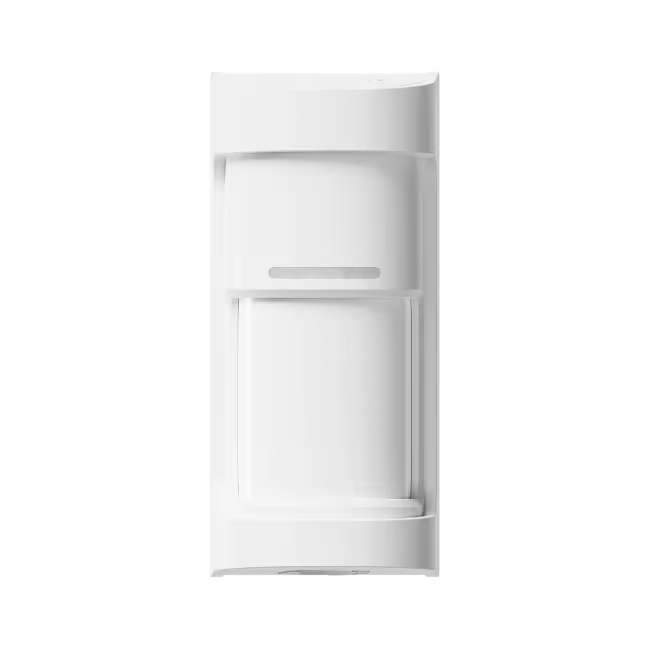
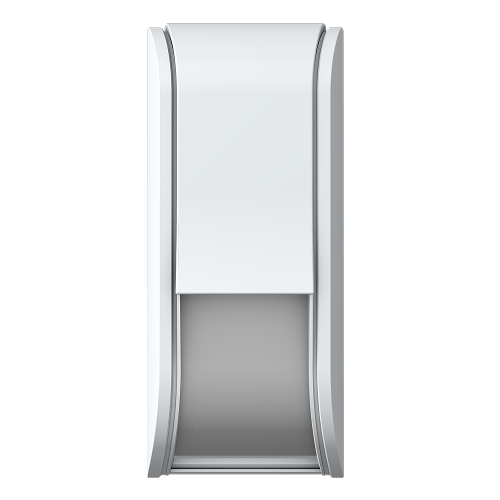


Olarm ENTRY

Using the I/O Ports

View Datasheet

Step 1

Remove the front lid

Use a flathead screwdriver to lift, leverage upwards & release the lid.

Step 2

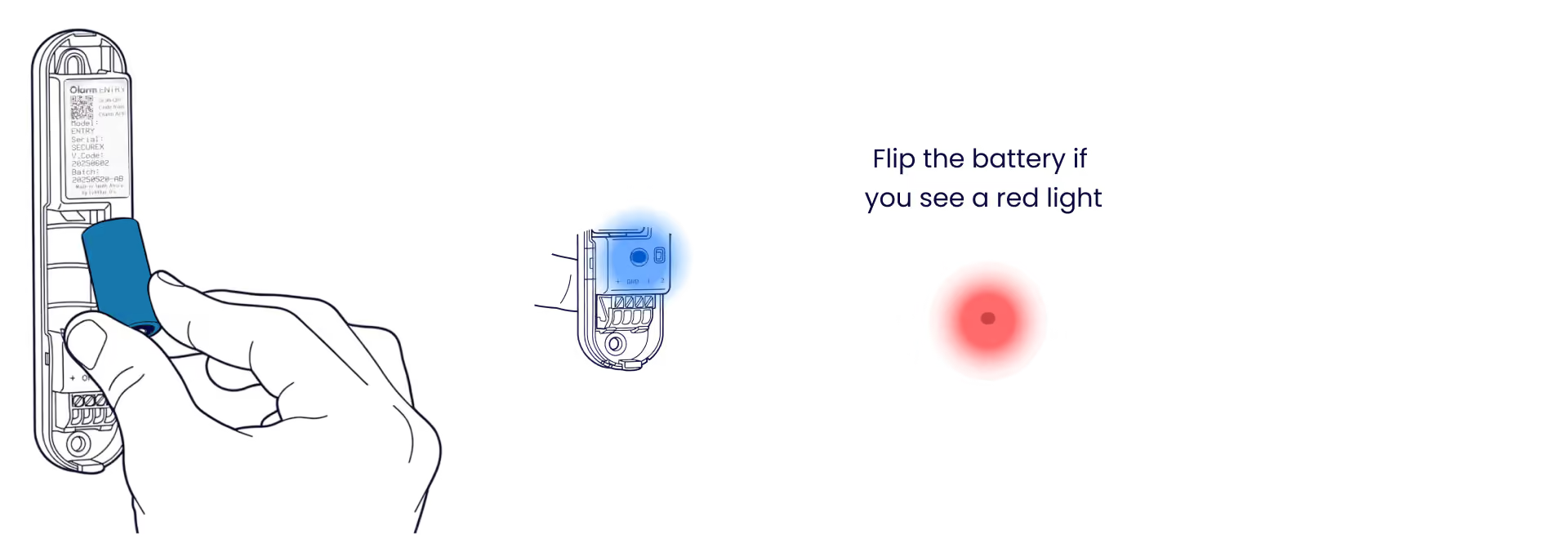
Insert the battery

Insert the the provided CR123A battery to power up the Olarm ENTRY. Ensure the battery orientation matches the symbols enclosure.
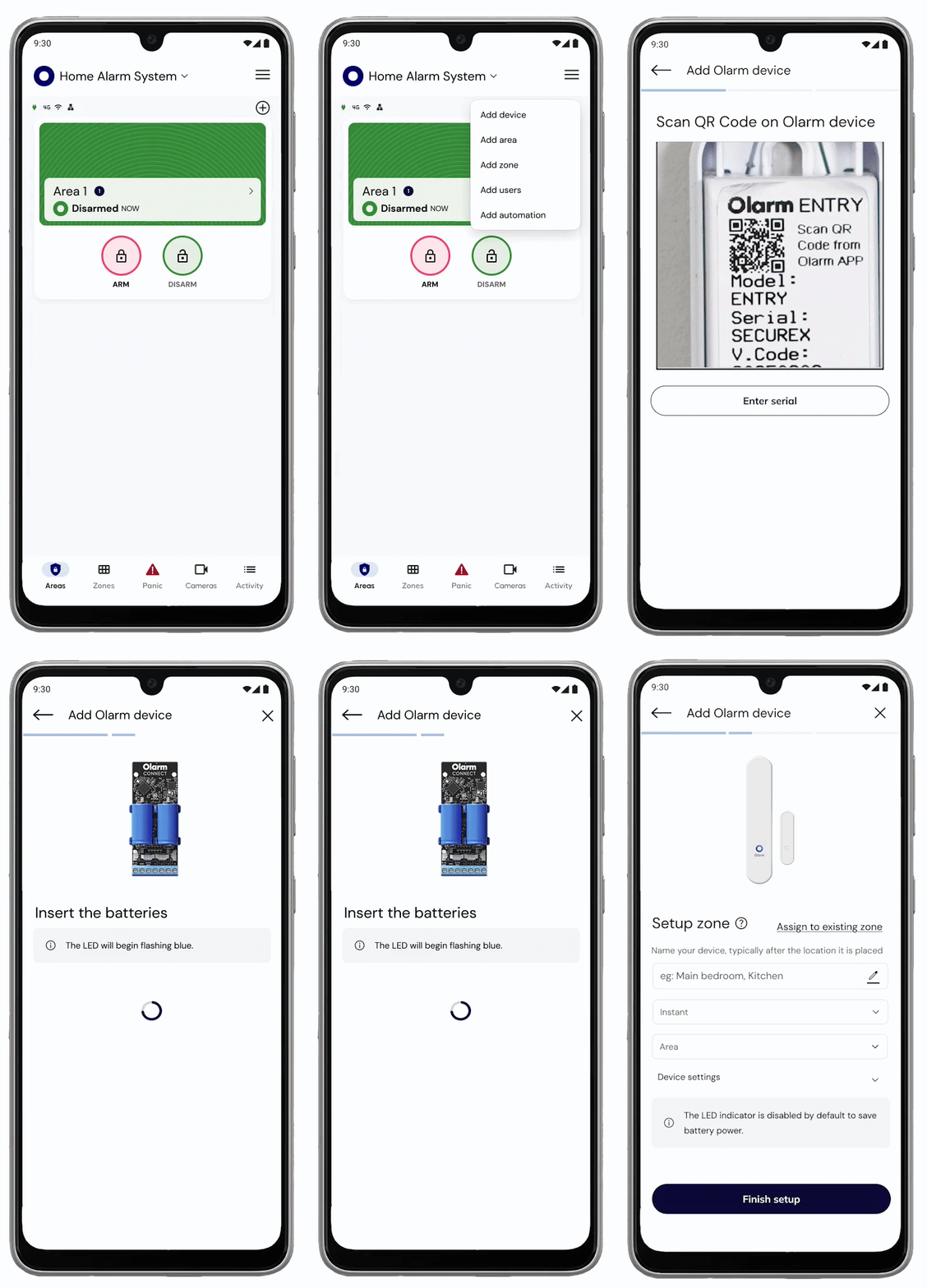
Add your device

Scan the QR code on the Olarm ENTRY, then configure the zone & detector settings.
Step 3

Control a gate, garage or strike lock

Olarm ENTRY can be used to open and close various security peripherals such as gates, garages, strike locks and more. Follow the steps below for guidance.

Step 3.1

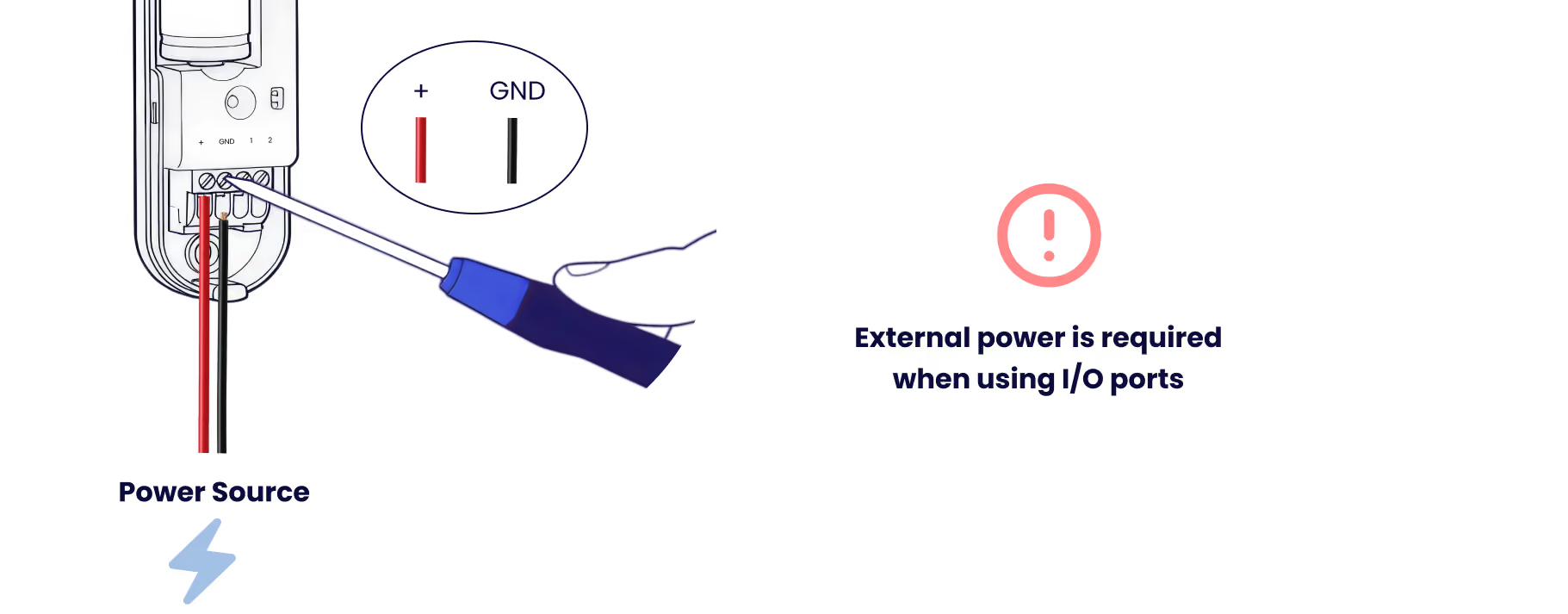
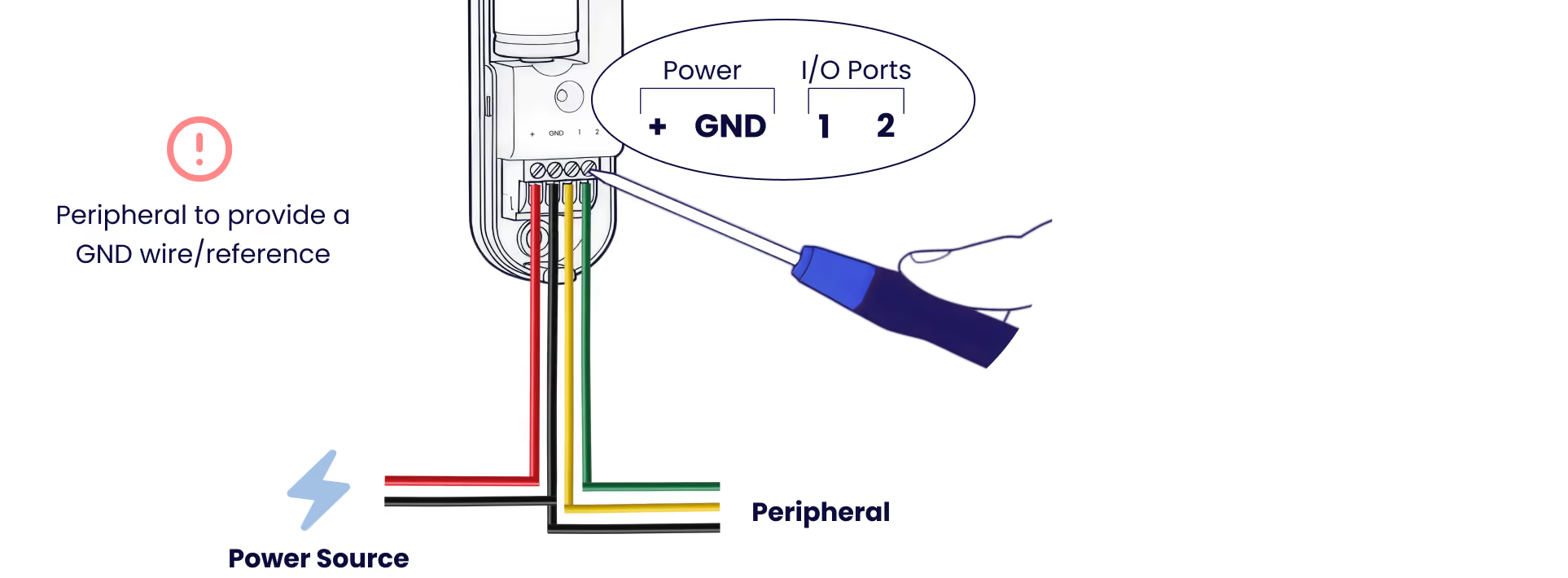
Connect external power (5-30V DC)

External power is required when using the I/O Ports. The peripheral you are wanting to control may have a power source. Ensure this is between 5 - 30V.
Step 3.2

Wire the I/O Ports as required

Ensure the peripheral you are wiring the Olarm ENTRY to provides a ground/common reference. This is mandatory for installation.
Step 3.3

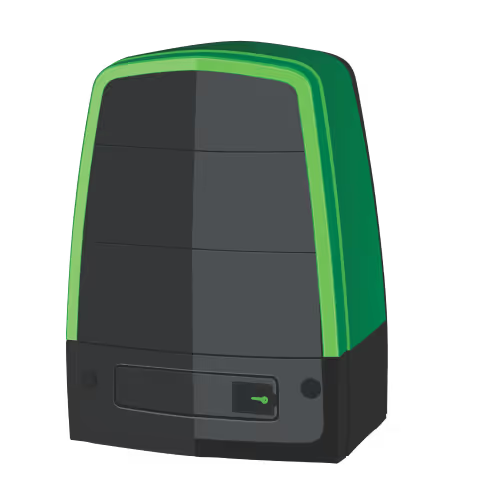
Installing on gate motor

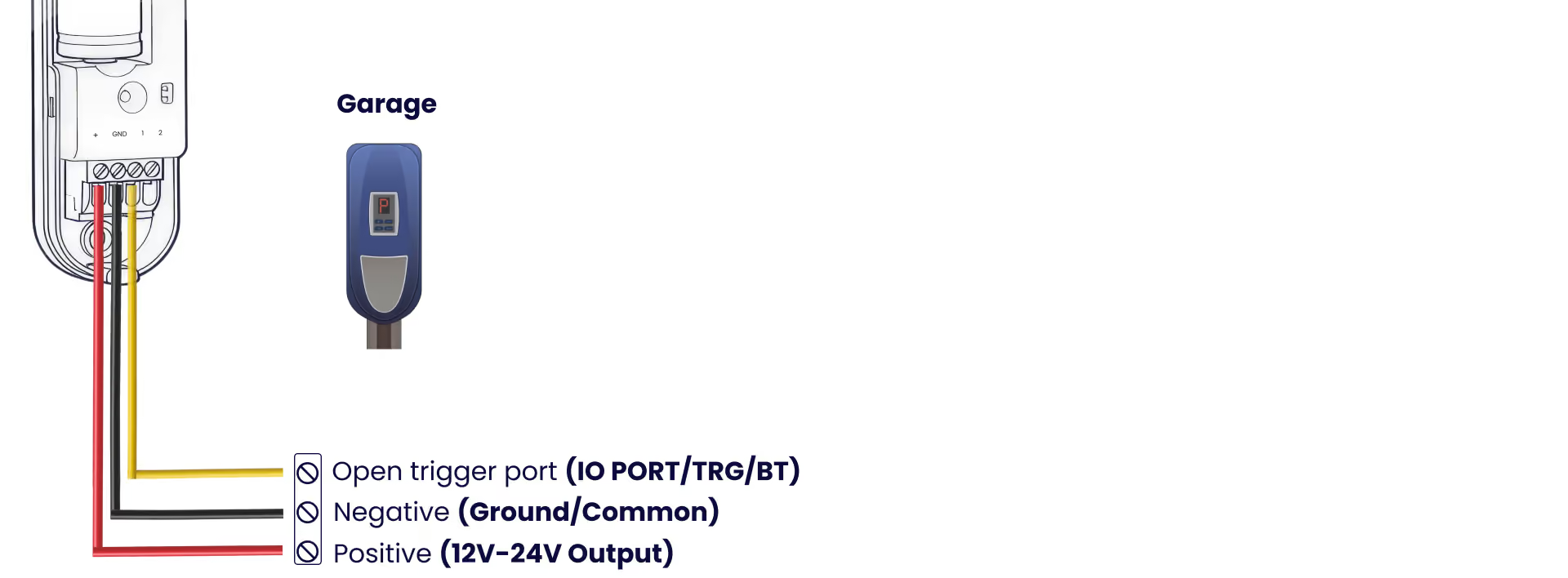
Gate motor's provide a power output of 12-24V for the Olarm ENTRY. Ensure a ground/common reference is wired between the device and the gate. Gate motors have different dedicated terminals for triggering an open/close.

Step 3.4

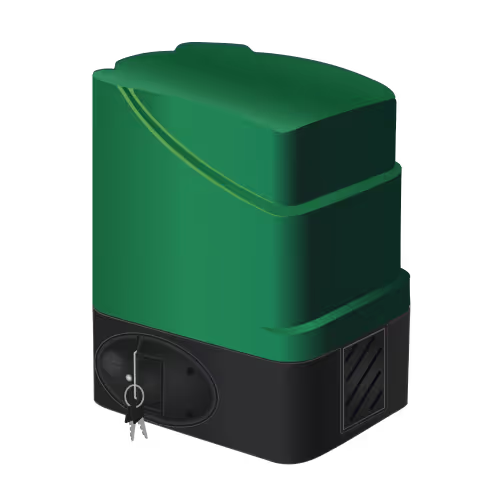
Installing on garage motor

Garage motor's provide a power output of 12-24V for the Olarm ENTRY. Ensure a ground/common reference is wired between the device and the garage. Garage motors have different dedicated terminals for triggering an open/close.
Step 4

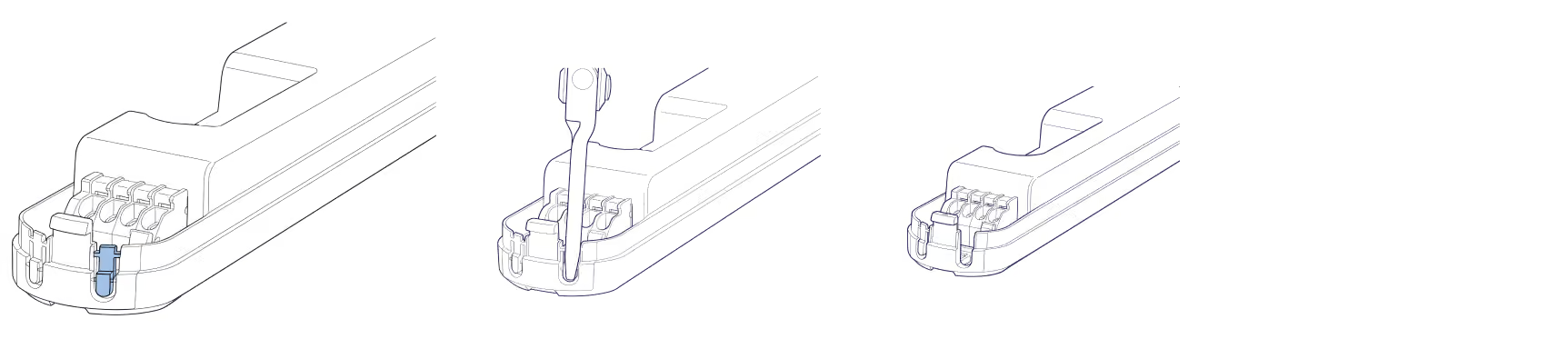
Snap off the breakouts to feed cables

Using pliers, snap off the cable running breakouts and feed cables through for a neat looking installation.
Step 5 (optional)

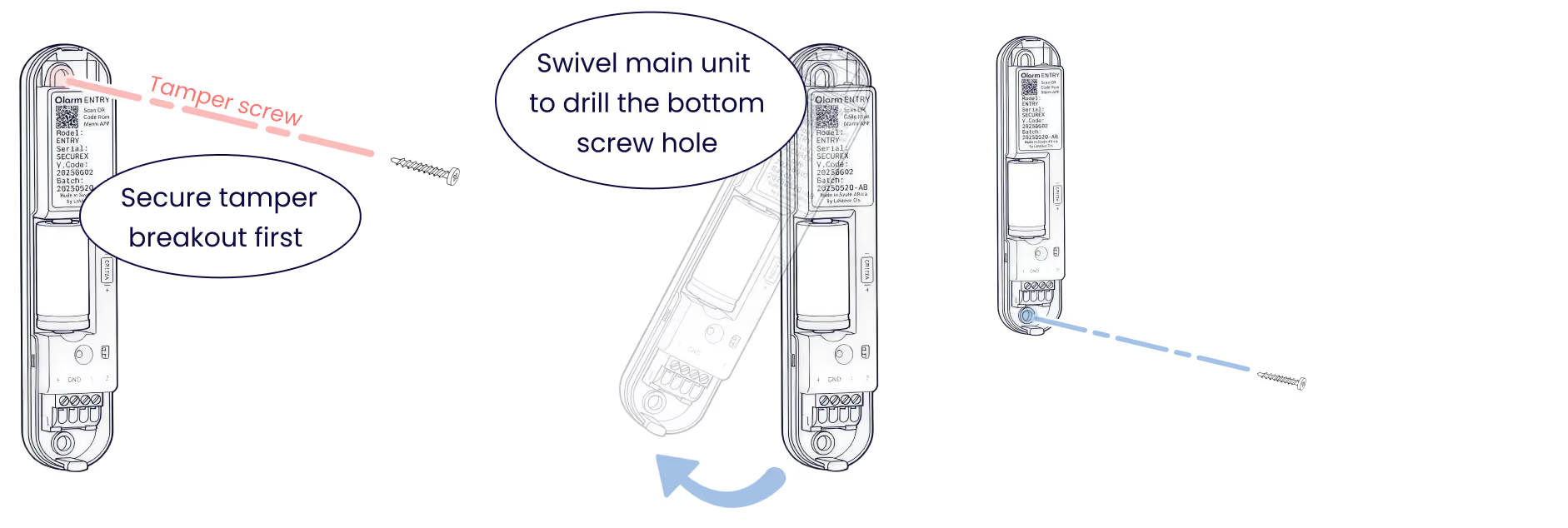
Secure the main unit

Secure the Olarm ENTRY in a water resistant enclosure to ensure the device's longevitiy. Where possible, use the provided mounting hardware to secure the device to a surface.
Step 6

Close the front cover

Close the front cover of the Olarm ENTRY, ensuring the device is properly sealed. Store in a weather-proof area.

Step 7

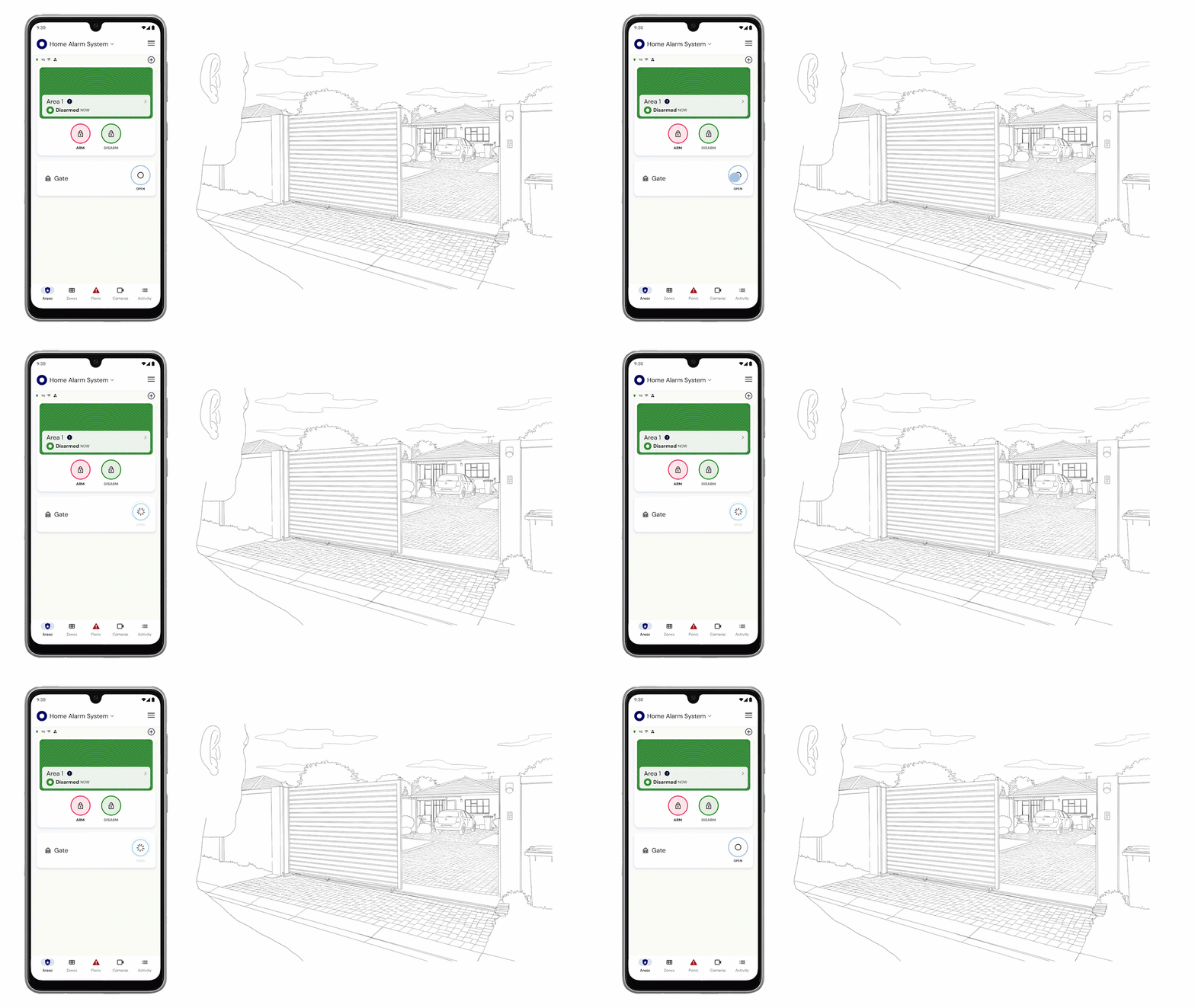
Setup the I/O Ports in-app

Navigate to the Olarm ENTRY in your device list and press settings. Then navigate to I/O Ports and configure for controlling/monitoring your relevant peripheral. See GIF below for guidance.

Step 8

Test I/O Port behaviour

Try out the newly added I/O Port control or monitoring of the connected peripheral.
Step 9

LED States

Understand what each LED pattern means on your Olarm ENTRY.

Troubleshooting

Why are my I/O outputs delayed / not triggering instantly?
  • On battery-only, Olarm ENTRY sleeps and checks in at intervals — outputs won't respond immediately.
  • Use external power (5–30V DC) to keep Olarm ENTRY awake for instant output response.
  • After powering externally, trigger again and confirm the device shows DC power present in-app.
Why does the output trigger sometimes, but not every time?
  • The load may be too heavy or the output is being used incorrectly (trying to power something directly).
  • Olarm ENTRY outputs should typically switch a relay/input, not drive motors/solenoids directly.
  • Use the output to trigger a relay or controller input, and confirm correct wiring for that device.
Why is my gate/garage controller not responding when Olarm ENTRY triggers?
  • Many controllers require a dry contact (momentary) trigger, not a sustained output.
  • Set the output to a pulse / momentary action (where applicable) and match the controller's trigger type.
  • Confirm you're connected to the correct terminals on the controller (often "START", "TRIGGER", "PB", "COM/NO").
Why is the output triggering the wrong device / wrong action?
  • You may have wired into the wrong input on the controller, or mixed up COM/NO/NC (if using a relay).
  • Trace the wiring end-to-end and label the conductors.
  • Test by temporarily triggering with a manual short across the controller trigger terminals to confirm you're on the right input.
Why is external power not being detected / showing power loss?
  • Polarity may be reversed or the supply may be outside 5–30V DC.
  • Measure voltage at Olarm ENTRY terminals (not only at the PSU) and tighten terminal screws securely.
  • If DC drops, Olarm ENTRY should run on battery — confirm the battery is fitted and healthy.
Why does Olarm ENTRY reset / go offline when the output triggers?
  • The power supply may be sagging when the load activates (shared PSU / insufficient current).
  • Use a stable, regulated 5–30V DC supply and avoid powering "noisy" loads from the same feed.
  • Keep I/O wiring neat and separate from mains/large inductive loads where possible.
Why is my wired input not registering on Olarm ENTRY?
  • The port may be configured as an output instead of an input.
  • Confirm the input type (NO/NC as required) and that the external device is actually changing state.
  • Test at Olarm ENTRY terminals: open/close the circuit and see if the app status updates.
Why does the input show the opposite state (Open when it should be Closed)?
  • The input type is set incorrectly (NO vs NC).
  • Switch the input type in the app to match your wiring/device.
  • Re-test with the accessory in its normal/rest state.
Why does the input flicker / trigger randomly?
  • Loose terminals, cable movement, or electrical noise can cause unstable input state.
  • Re-terminate the wires, ensure copper is clamped properly, and avoid running alongside mains.
  • If the input device is a long cable run, consider shielding / better routing / tidier strain relief.
Why is the Olarm ENTRY battery draining faster than expected when using I/O?
  • Battery-only + frequent I/O events + LED enabled + weak Olarm HALO signal increases power use.
  • Improve signal strength (minor repositioning / adjust Olarm HUB placement) and disable LED if appropriate.
  • For I/O-heavy use, run external power so the battery acts as backup instead of primary.

Still need help ?

Contact Support

On this page