










Linking your cameras to your alarm: what you need
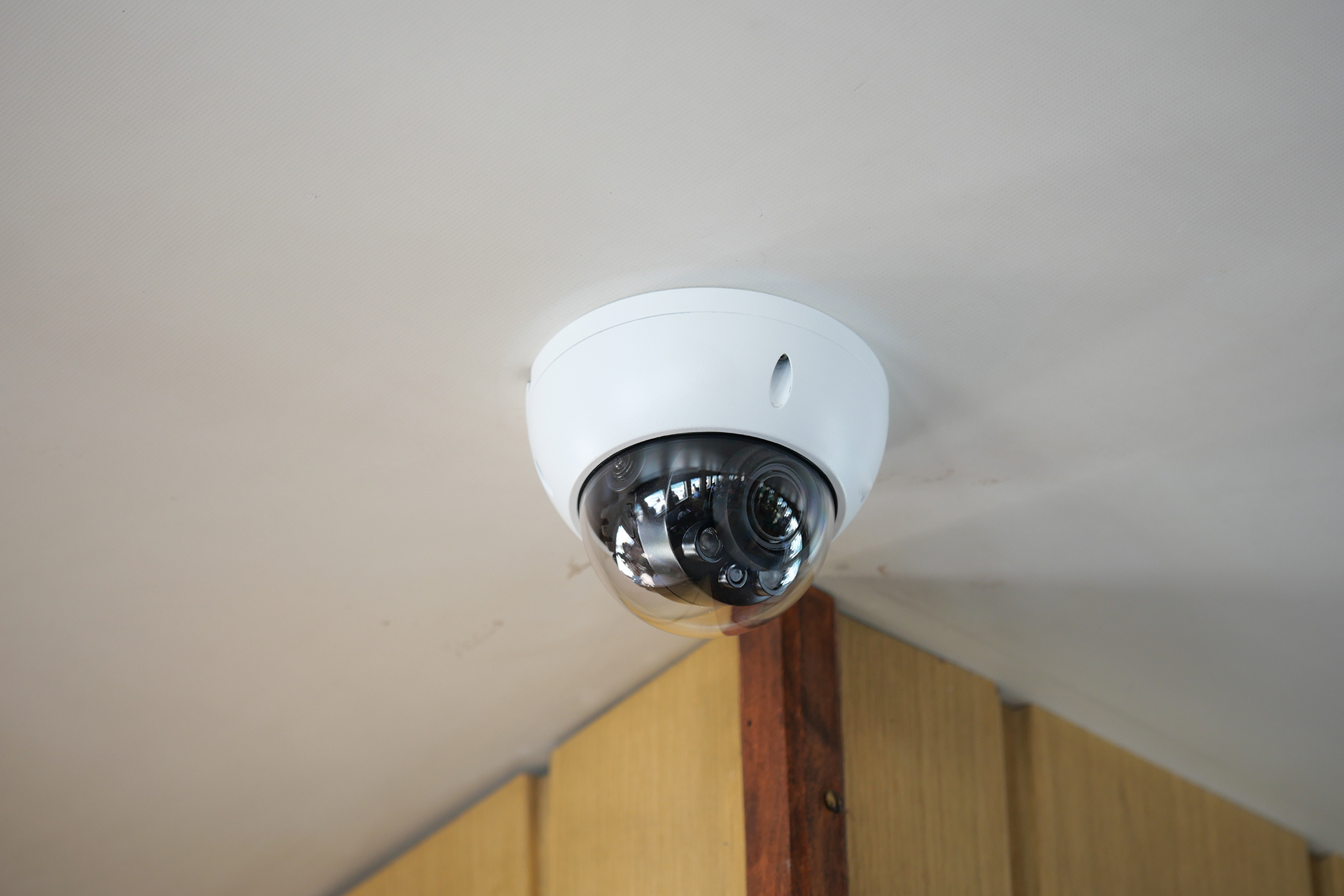
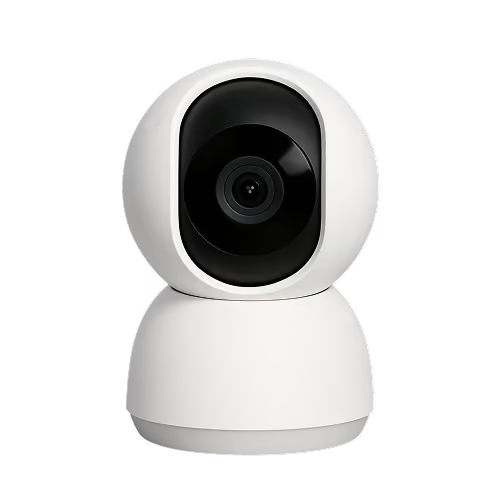
Linking your cameras to your alarm lets you see live video in the Olarm APP and, with playback set up, a short clip of what set off each zone. You need an Olarm MAX on the same WiFi network as your cameras, and cameras or a recorder that can stream over RTSP in H.264.
What you get
- Live view of your cameras in the same app as your alarm.
- Cameras linked to zones, so you can jump to the right camera when a zone triggers.
- Playback clips: when a zone is triggered, a 10-second clip from your recorder is attached to that event in the activity log.
When the alarm goes off, you can see whether it's a burglar or the neighbour's cat before you decide what to do.
What you need
The right communicator
Camera linking works with Olarm MAX on firmware 1.5.1 or later. Olarm PRO and Olarm PRO 4G don't support video.
Cameras that can stream over RTSP
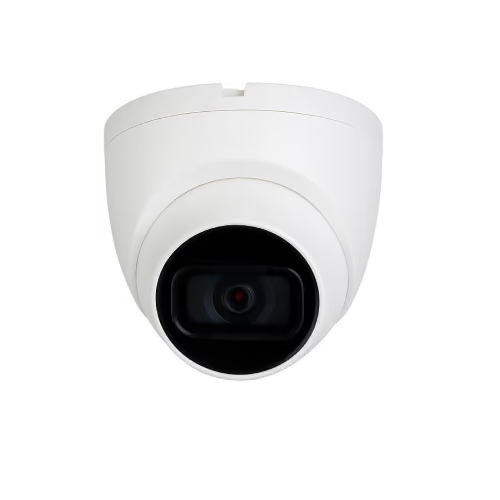
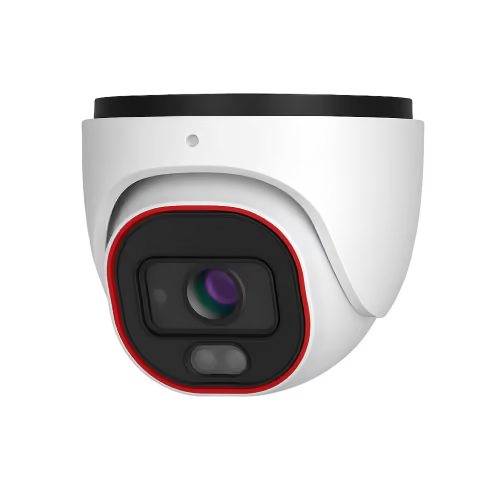
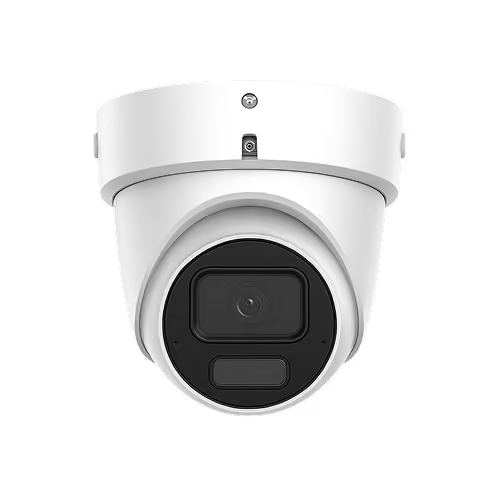
RTSP is a common way for cameras to share live video. Most IP cameras, NVRs, DVRs and XVRs from brands such as Hikvision, Dahua and Provision support it, as do many TP-Link Tapo cameras. If you're not sure, check your camera's specifications for RTSP.
The right camera settings
- H.264 video. Olarm MAX doesn't support H.265, so switch the stream to H.264.
- A substream. The smaller second stream your camera makes, which uses less WiFi than full resolution.
- A fixed (static) IP address for the camera or recorder, so it doesn't change after a router restart.
- The camera's username and password.
Good WiFi
- Olarm MAX and the cameras must be on the same network.
- The network needs 2.4GHz WiFi switched on.
- The WiFi signal at Olarm MAX needs to be good. Video doesn't stream over its mobile connection.
For playback clips
- A recorder that's recording.
- Accurate time on the recorder, set by network time (NTP), so clips match the alarm events.
- Your alarm zones connected through Olarm MAX.
Setting it up
Most homeowners ask their installer, because it means logging in to the cameras and changing settings. If you'd like to do it yourself:
- Change the camera or recorder settings above.
- In the app, go to Device Setup > Linked cameras > Add camera.
- Enter the camera's IP address, RTSP port (usually 554), stream path, username and password.
- Choose the zones the camera should be linked to.
- Test the connection.
Stream paths differ by brand. The Olarm help centre has step-by-step guides for each one.
If it doesn't connect
- Check the stream is H.264, not H.265.
- Check the IP address, port, path and password.
- Check the camera and Olarm MAX are on the same network, and the WiFi signal is strong.
- Your installer can test the stream on a computer with a free video player such as VLC.
Frequently asked questions
Do I need new cameras?
Usually not. Most cameras and recorders installed in the last few years support RTSP. Check the settings above first.
Can my monitoring company see my cameras?
Not at the moment. Linked cameras are visible to you and the other users on your device in the Olarm APP, so you can check what happened and let your monitoring company know.
Does camera video use my mobile data?
It streams over your home WiFi to Olarm MAX. Watching on your phone away from home uses your phone's data.
Want to see what triggered your alarm? See Olarm MAX.
Recent news

Orisec CP and ZP: app control and remote UDL with Olarm MAX

Texecom Premier and Premier Elite: app control and remote Wintex with Olarm MAX
