











Texecom Premier and Premier Elite: app control and remote Wintex with Olarm MAX

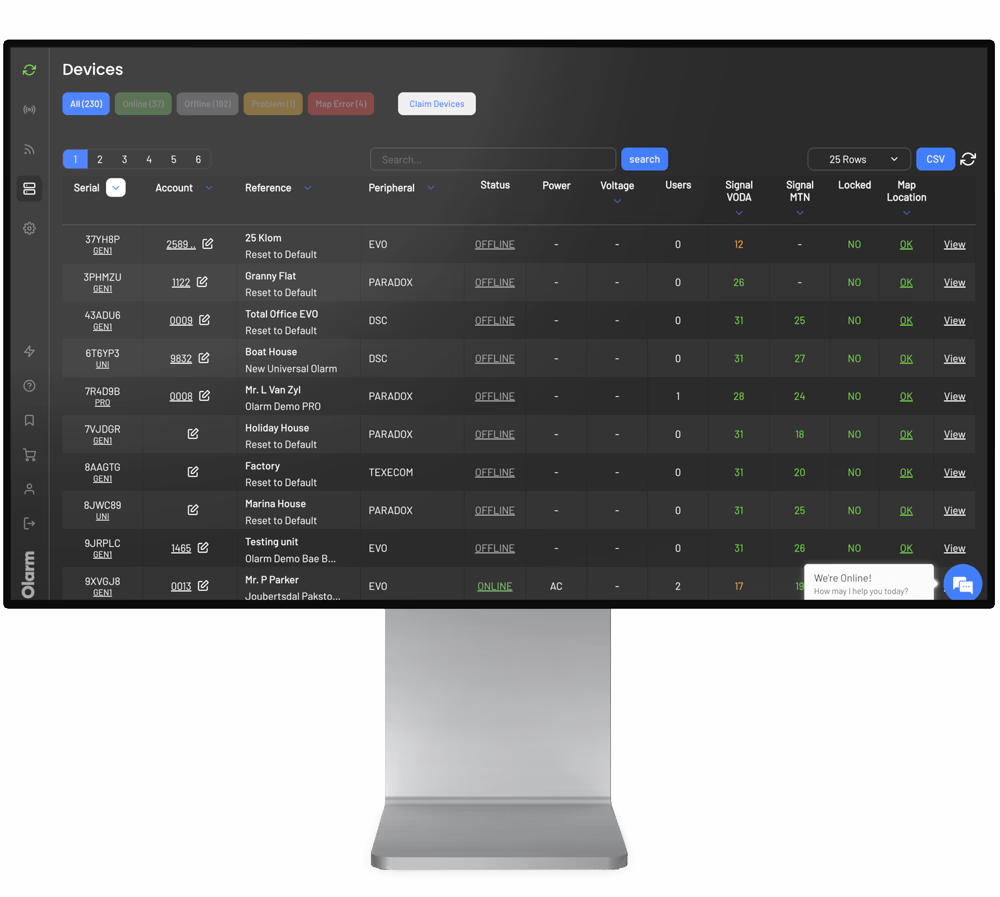
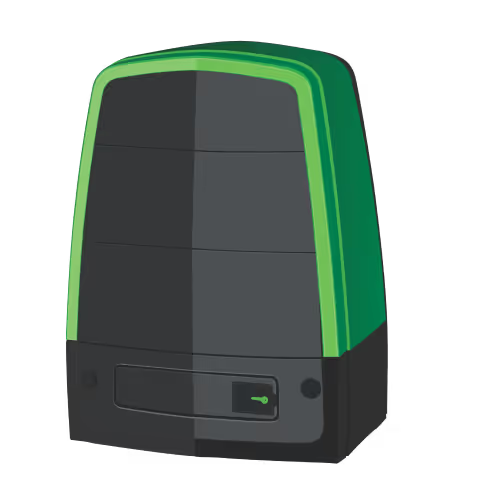
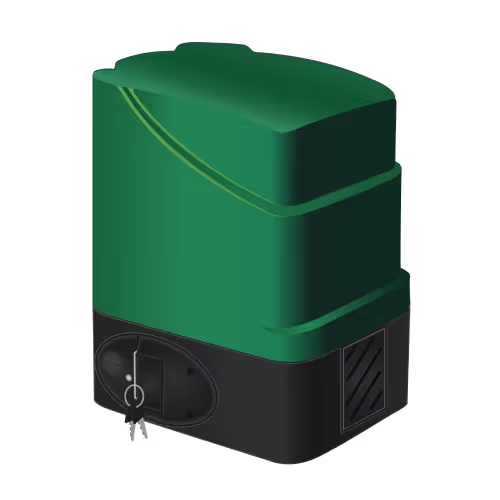
Texecom Premier and Premier Elite panels can be set, unset and monitored from your phone, and programmed remotely in Wintex, without a separate IP module or port forwarding on the customer's router. Olarm MAX connects to the panel's com port, puts it in the Olarm APP for the homeowner, and carries Wintex sessions for the engineer through Olarm REMOTE CONNECT.
Which Texecom panels are supported?
- Premier: 412, 816, 816 Plus, 832 and 168.
- Premier Elite: 24, 48, 64, 64-W, 64-W LIVE, 88 and 168.
Olarm MAX uses one of the panel's com ports. Panels with a single com port that's already in use may not be supported, so check the Premier Elite install guide or the Premier install guide before you quote.
Remote Wintex for engineers
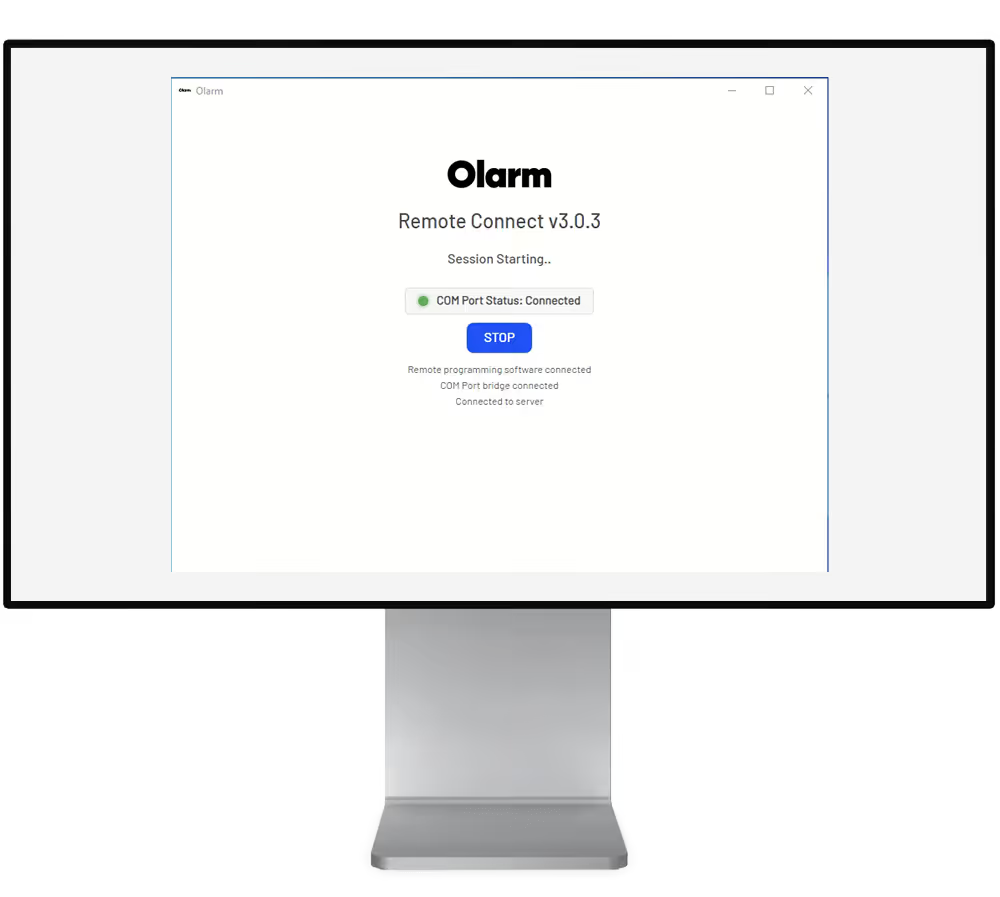
Most Texecom engineers already live in Wintex. Olarm REMOTE CONNECT lets you open a Wintex session to a customer's panel from the office, over the Olarm connection, so a programming change doesn't need a van on the road.
- No port forwarding or VPN. The session runs over Olarm MAX's own 4G and WiFi connection, not the customer's router.
- One-time codes. Each session uses a code generated in Olarm COMMAND CENTRE, so access is per job, not a standing back door.
- Every session logged. You can see who connected to which site and when, which helps with your own audit trail.
- Included for partners. REMOTE CONNECT comes with the Olarm partner programme at no extra charge.
- Windows PC. REMOTE CONNECT runs on Windows, alongside Wintex.
Typical jobs you can do remotely: changing user codes and zone names, adjusting entry and exit times, fault-finding a zone, checking the event log and setting up part sets after a customer asks.
What the homeowner gets
- Set, unset and part set from the Olarm APP, with Face ID or fingerprint sign-in.
- Zone names synced from the panel, so alerts say "Back door" rather than "Zone 4", and zones can be omitted in a tap.
- Push notifications and critical alerts. Alarms and panics sound even when the phone is on silent.
- Gate and garage control through Olarm MAX's own output, or the panel's outputs on Premier Elite panels.
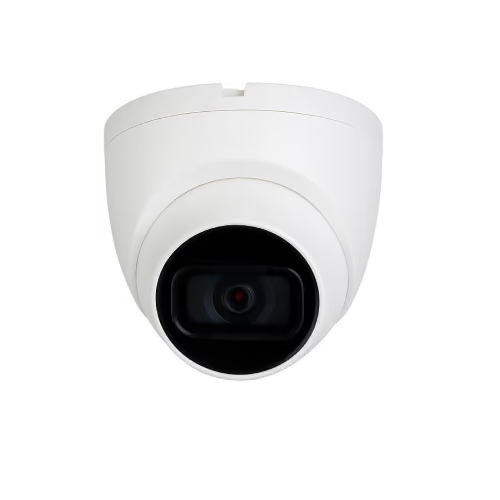
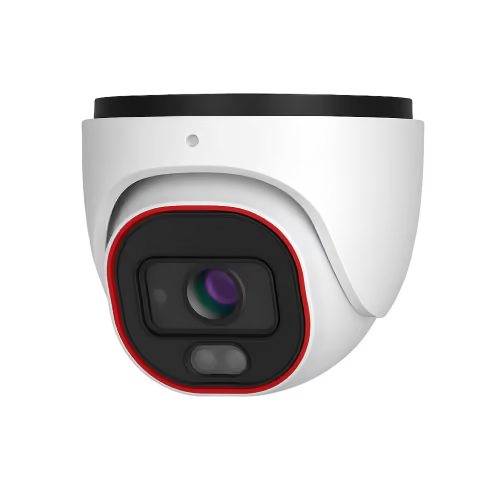
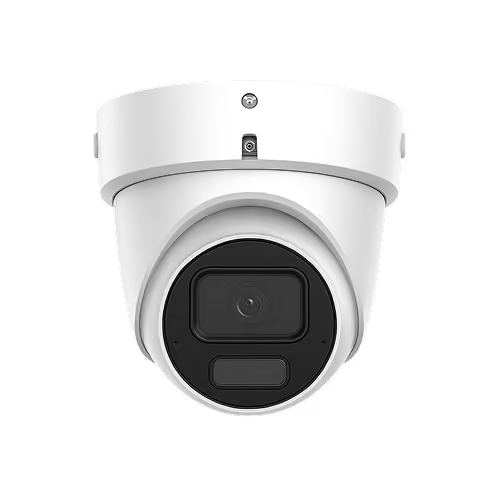
- Cameras: link Hikvision, Dahua, Provision or other RTSP cameras to see what set off a zone.
- Users with start and end dates for cleaners, guests and contractors.
A connection that keeps working
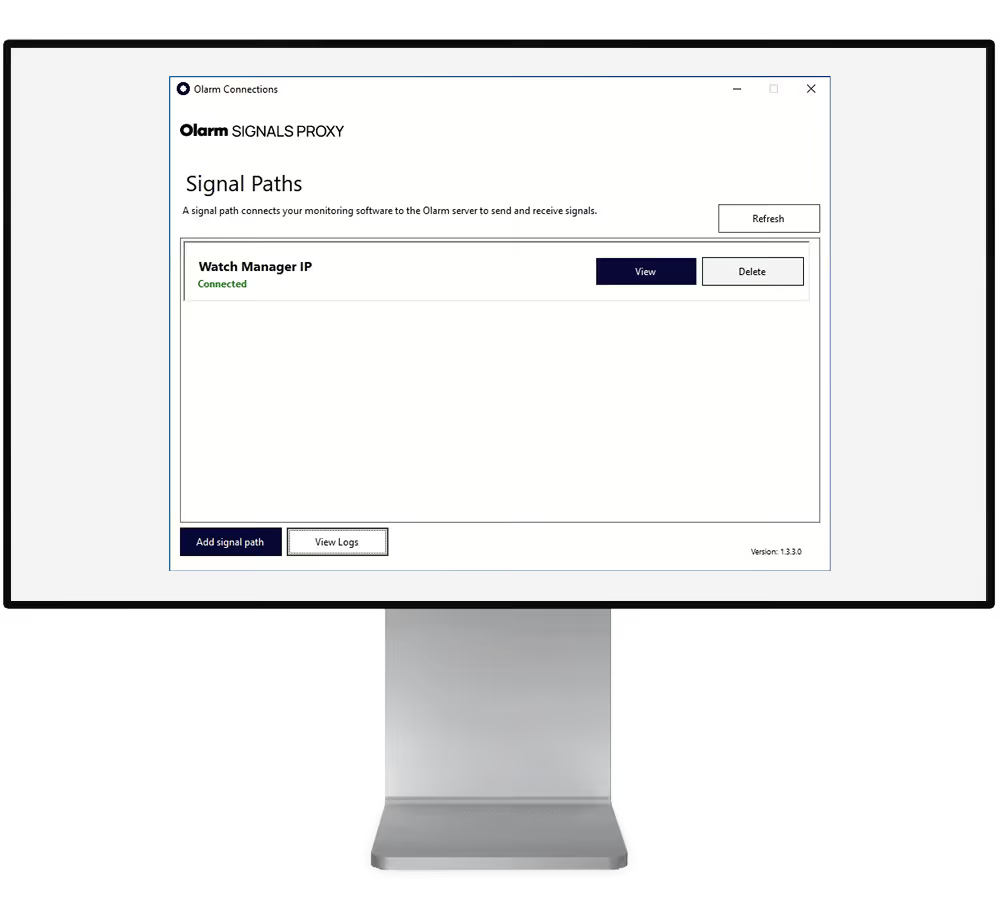
Olarm MAX uses dual-SIM 4G with WiFi backup, so the app and REMOTE CONNECT keep working when the customer's broadband doesn't. A small built-in backup gives it time to send a final alert if its power is cut. For ARCs, signals can be delivered through Olarm SIGNALS PROXY.
Setting up the panel
On a Premier Elite, enter the engineer's menu, set your UDL password under UDL/Digi Options, and set the com port Olarm MAX uses to SmartCom. Then enable Remote Arm and Remote Disarm for each area under Area Options, so the app can set and unset. The install guide has the full steps with photos.
Frequently asked questions
Can I use Wintex remotely on a Texecom Premier panel?
Yes. With Olarm MAX fitted, Olarm REMOTE CONNECT carries a Wintex session to Premier and Premier Elite panels over the Olarm connection.
Do I need port forwarding on the customer's router?
No. REMOTE CONNECT runs over Olarm MAX's own connection.
Why can't the app set or unset the panel?
Check that Remote Arm and Remote Disarm are enabled for each area in Area Options.
Is REMOTE CONNECT an extra cost?
It's included with the Olarm partner programme at no extra charge.
Fit Olarm to your Texecom sites. Become an Olarm partner or see Olarm for Texecom.
Recent news

Orisec CP and ZP: app control and remote UDL with Olarm MAX
Texecom Premier and Premier Elite: app control and remote Wintex with Olarm MAX
