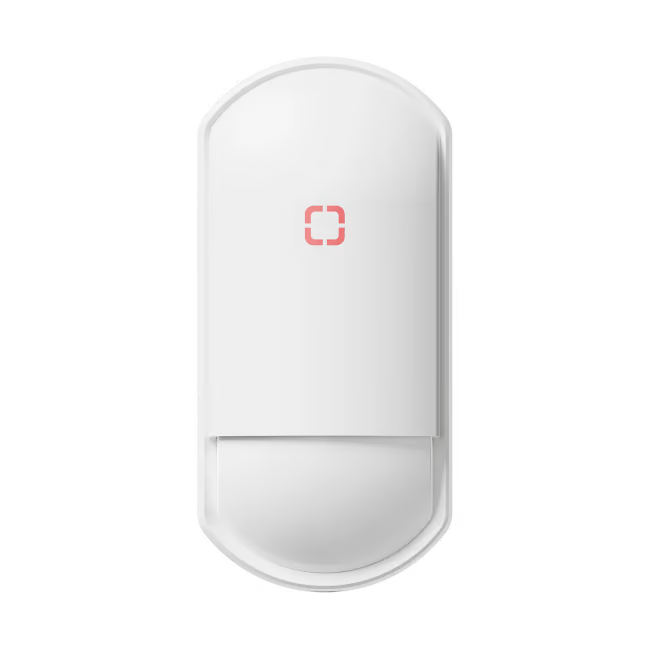
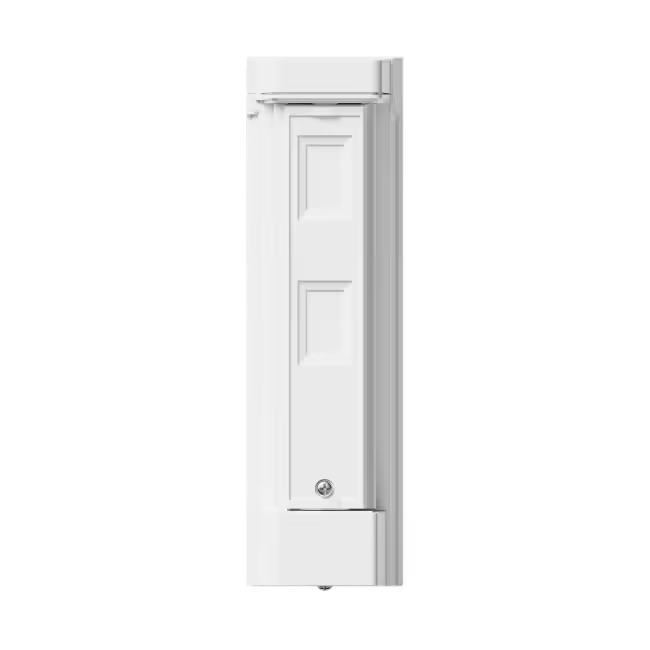
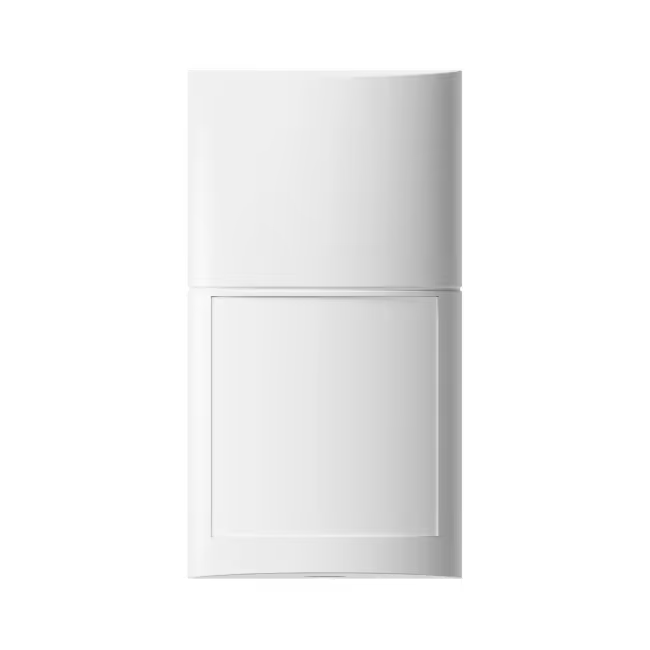
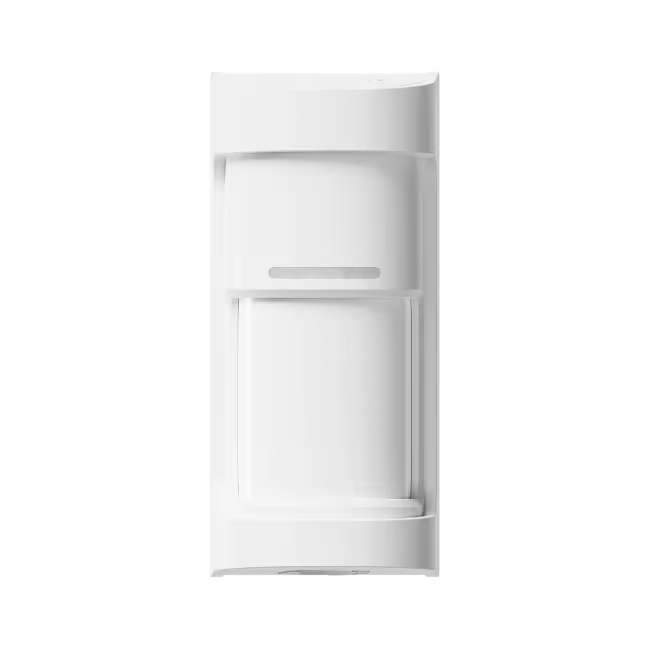
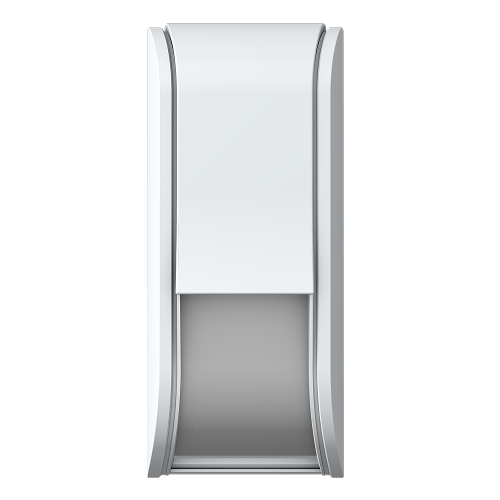
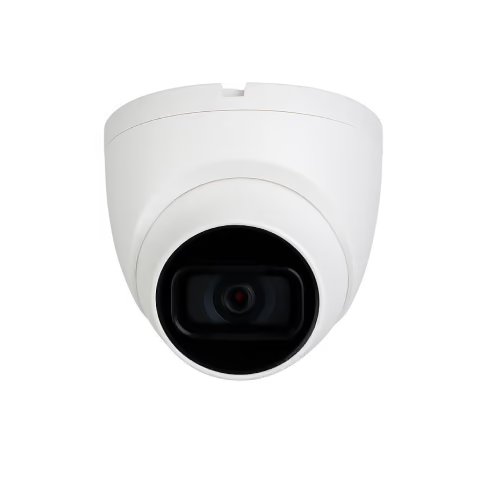
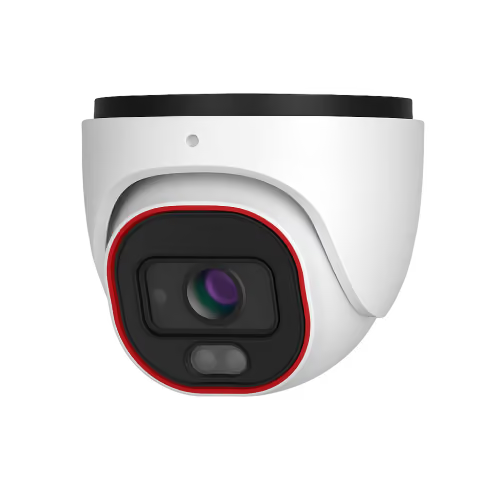
Olarm FlipX

Powered by the Optex FLX-R

View Datasheet

Step 1

Remove the front lid

Use a flathead screwdriver to release the locking screw and lift off the lid.

Step 2

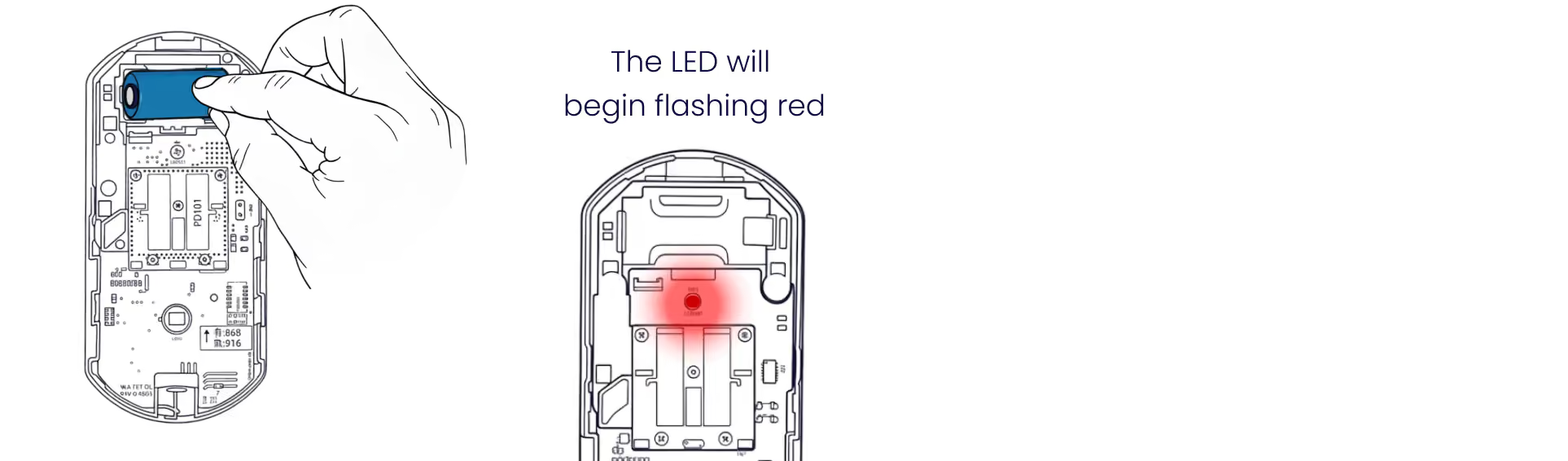
Insert the batteries

Place the battery into the Olarm FlipX. The LED will flash red when powered on correctly to indicate the device is waiting to be added to an Olarm HUB.
Step 3

Add your device

Scan the QR code on the Olarm FlipX to add the device, then configure your zone and detector settings.

Step 4

Select detection mode

Gently open the clips holding the lens, remove it, and flip it over to switch modes.

Step 4.1a

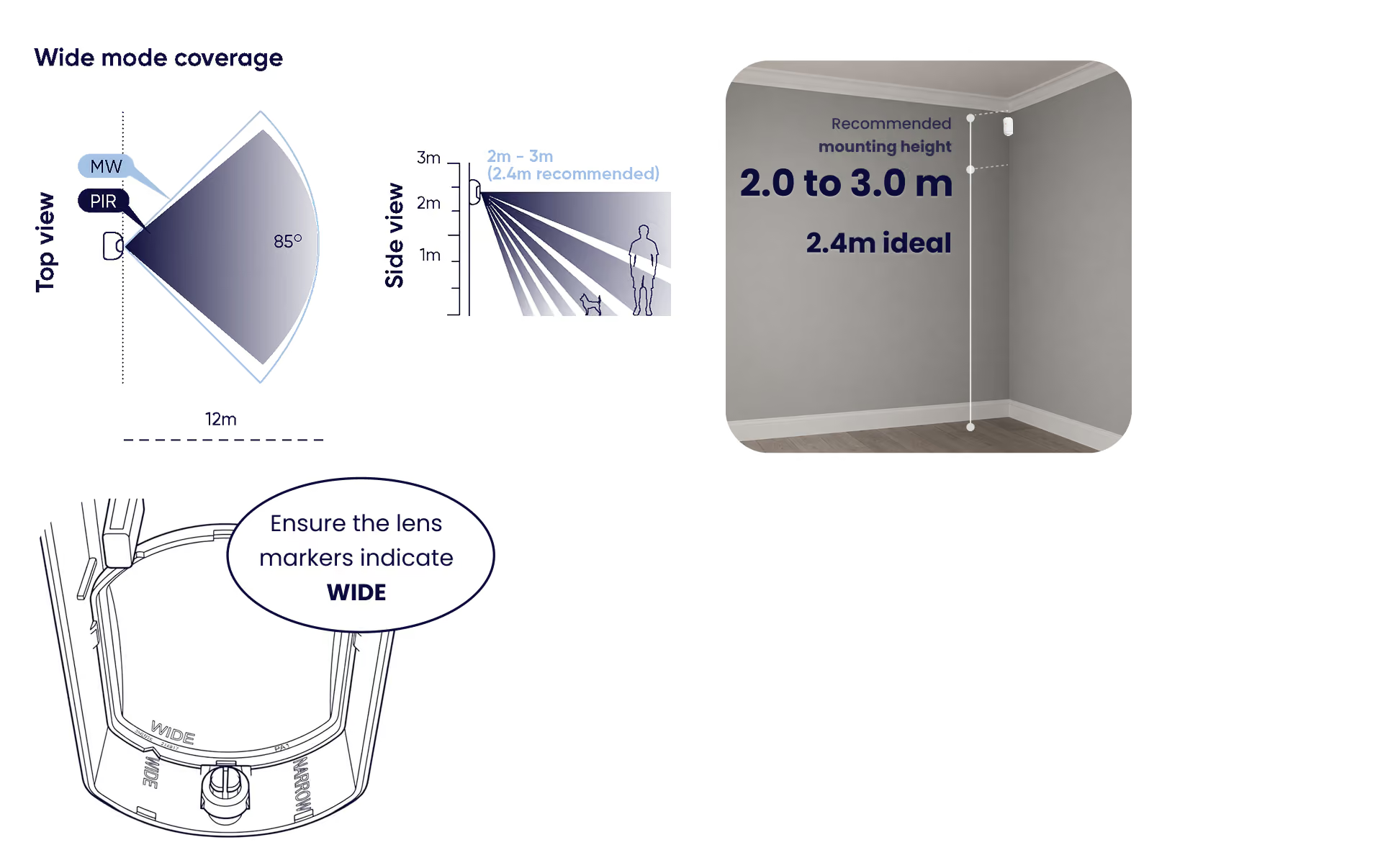
Installing for wide coverage

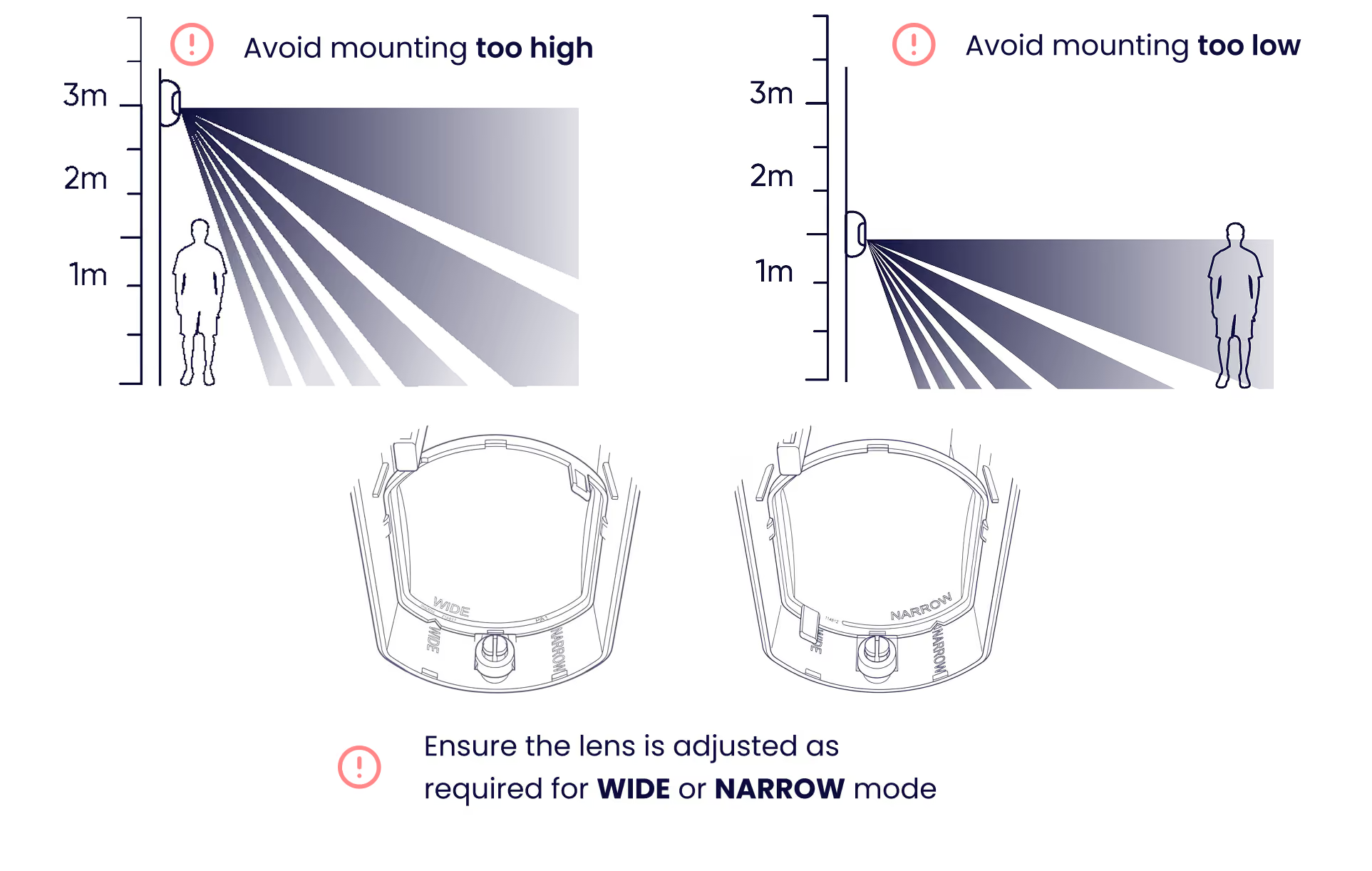
Install in a corner or suitable wall position where people will move across the coverage path of the FlipX for reliable detection. Mount between 2m–3m (2.4m recommended).

Step 4.1b

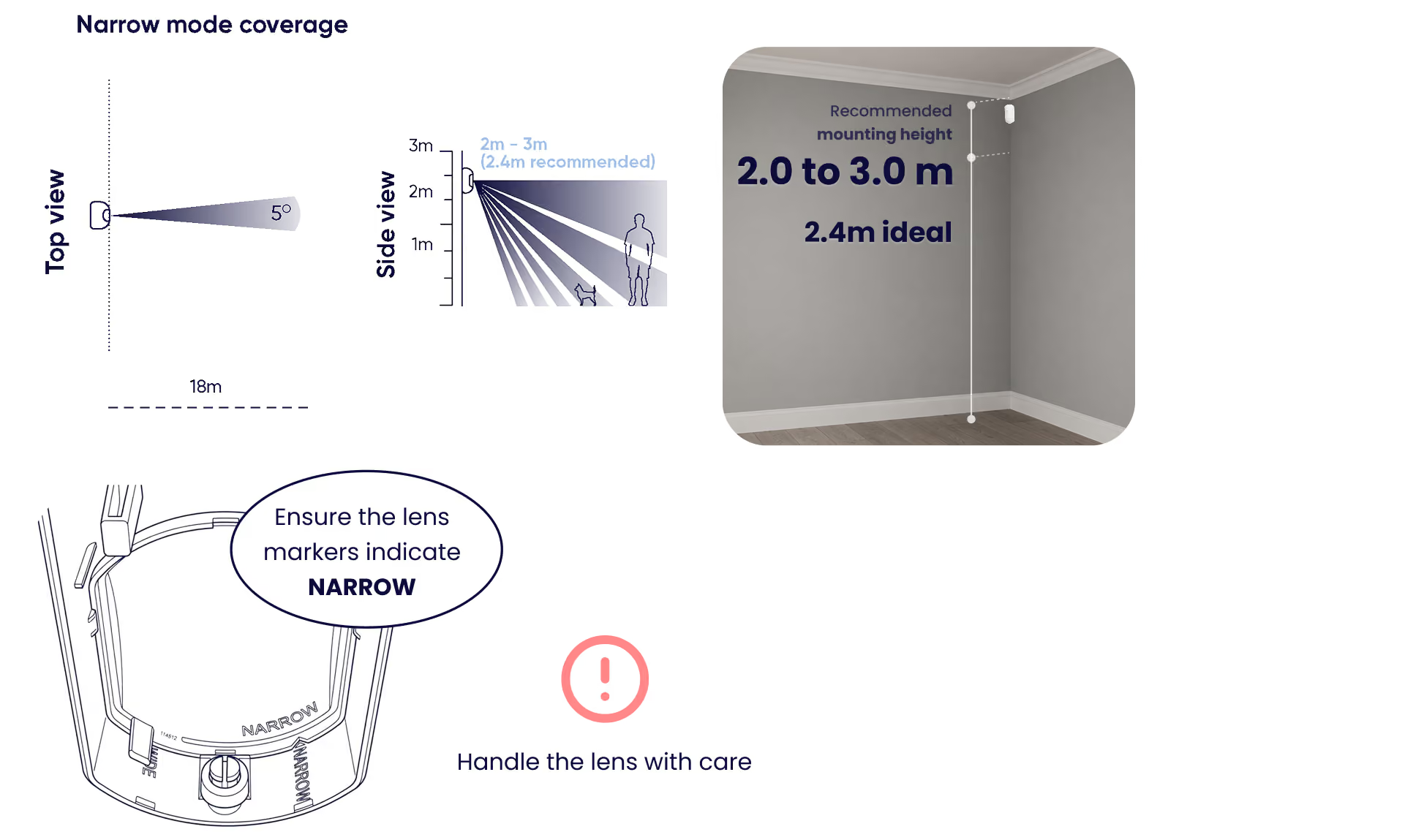
Installing for curtain coverage (narrow)

Install in a suitable wall position aimed along a narrow area, such as a passage or sliding door entrances, where people will cross the FlipX detection path. Ensure the lens markers indicate NARROW. Mount between 2m–3m (2.4m recommended)

Step 5 (Option A)

Mount the FlipX directly onto the surface

Use this option when mounting directly to a wall or corner.

Step 5.1a

Remove the detection unit

Press down on the white clip to release and remove the detection unit.

Step 5.2a

Secure the mounting plate

Puncture the screw slots for corner or flat surface mounting, then fasten to the surface. Use the tamper screw for extra protection.

Step 5 (Option B)

Mount the Olarm FlipX using the bracket

Use this option when you need adjustable angling for wall or ceiling mounting. Brackets are ordered separately.

Step 5.1b

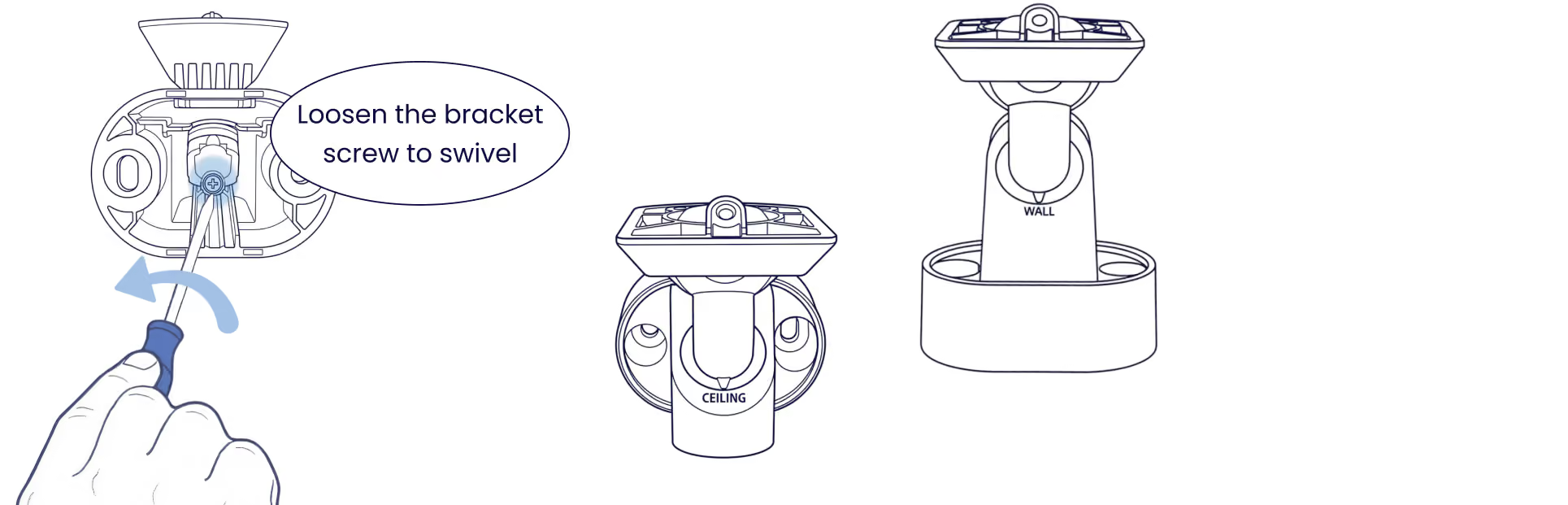
Adjust the bracket orientation

Loosen the orientation lock screw, set your desired position for ceiling or wall mount, then tighten to secure.
Step 5.2b

Secure the bracket to the surface

Fasten the bracket to the wall or ceiling using suitable screws.

Step 5.3b

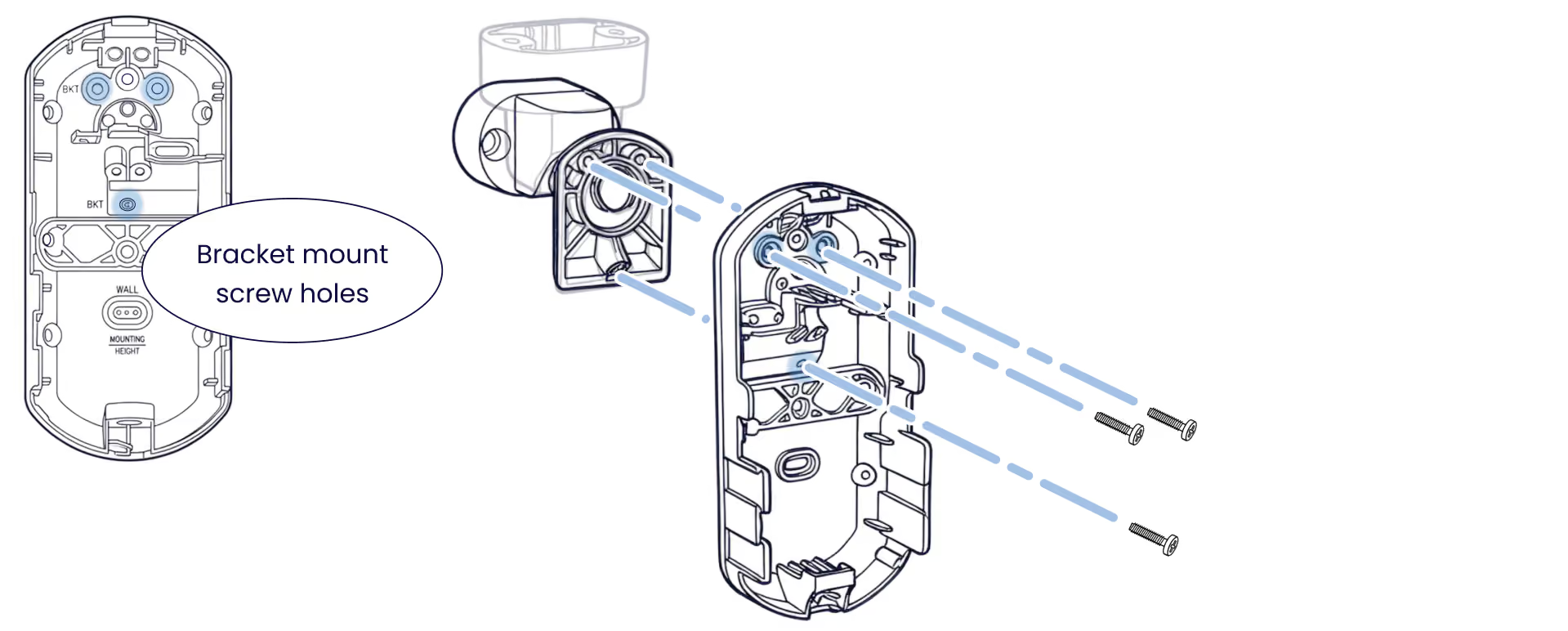
Secure the bracket to the backplate

Attach the backplate to the bracket using the screw holes labelled BKT on the backplate.
Step 5.4b

Adjust the detection angle

Rotate and tilt the detector to set your desired coverage direction.

Tips

Reduce nuisance alarms

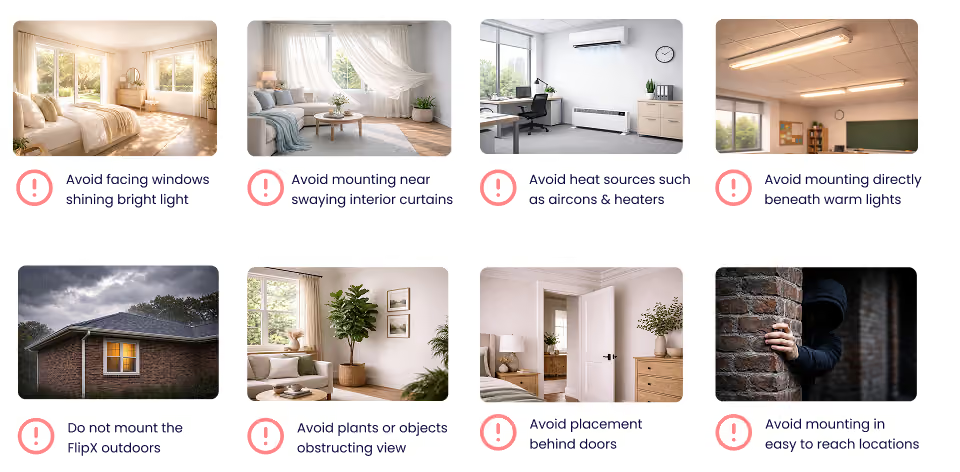
Avoid these common installation mistakes that can trigger nuisance alarms.
Tips

Mounting mistakes to avoid

Avoid mounting too high or too low which may make your detector too sensitive or create dead zones. Stick to the recommended mounting height. Ensure the lens matches your chosen mode (WIDE or NARROW).
Troubleshooting

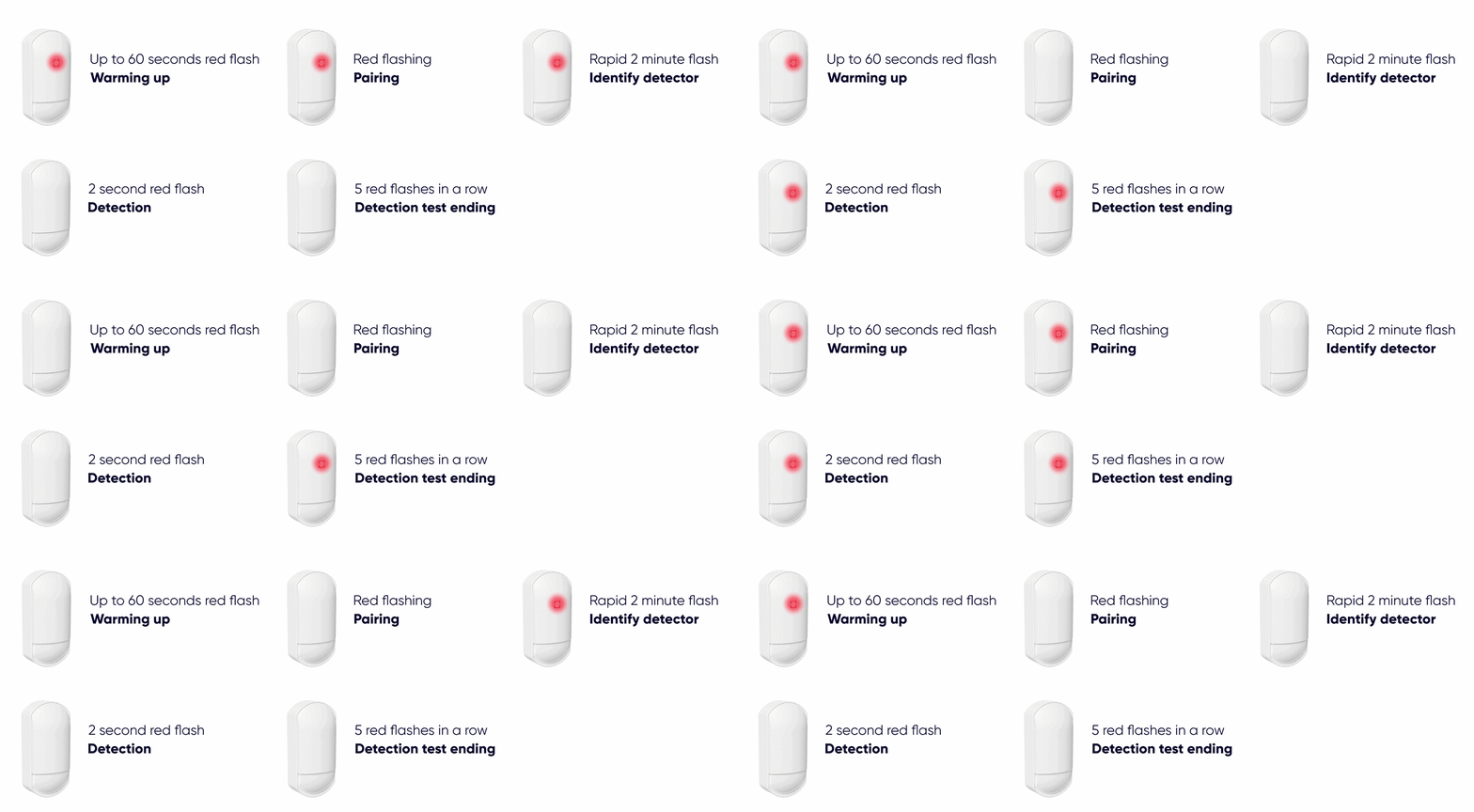
LED states

Understand what each LED pattern means on your Olarm FlipX.
Step 6

Test your detector

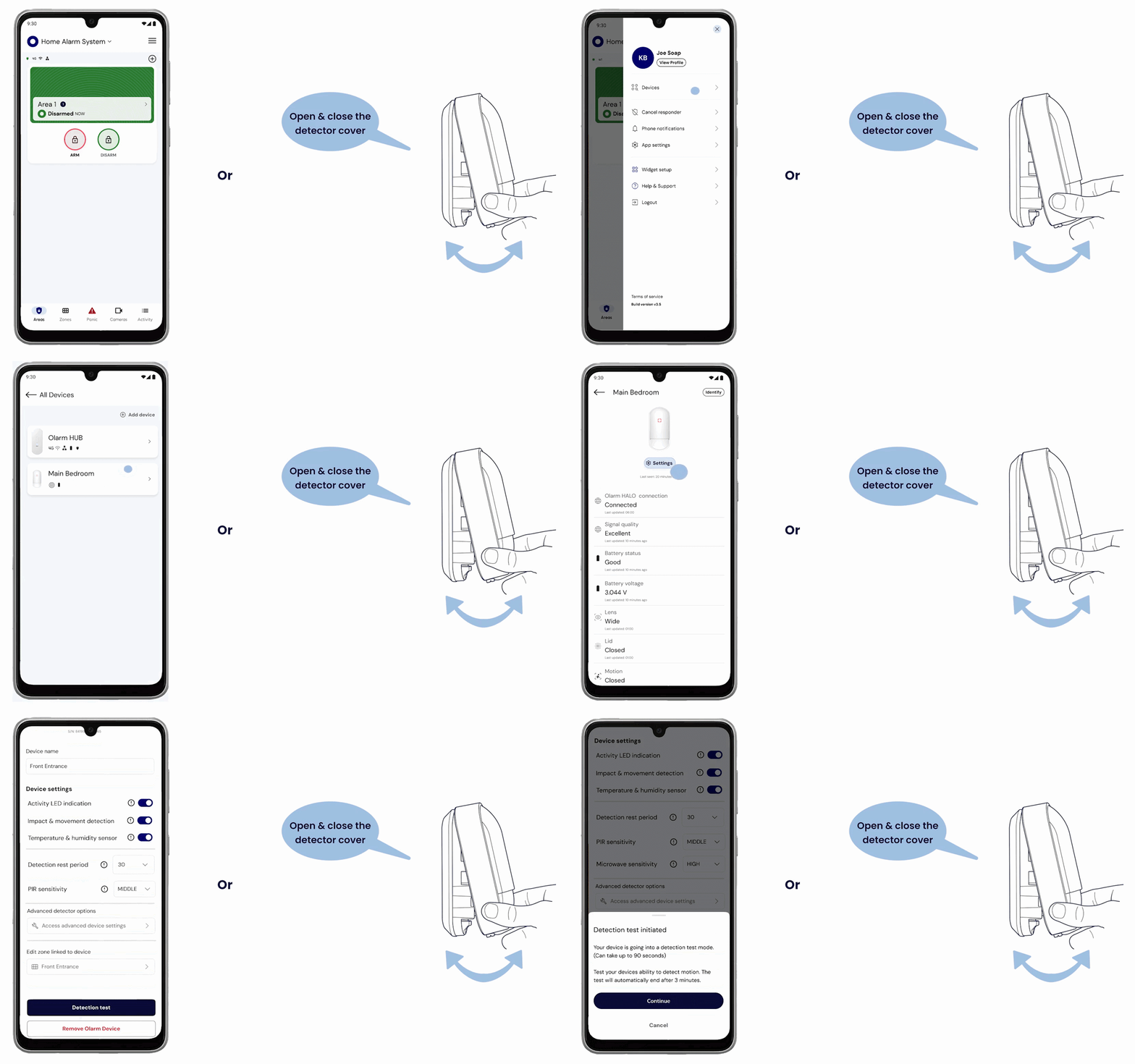
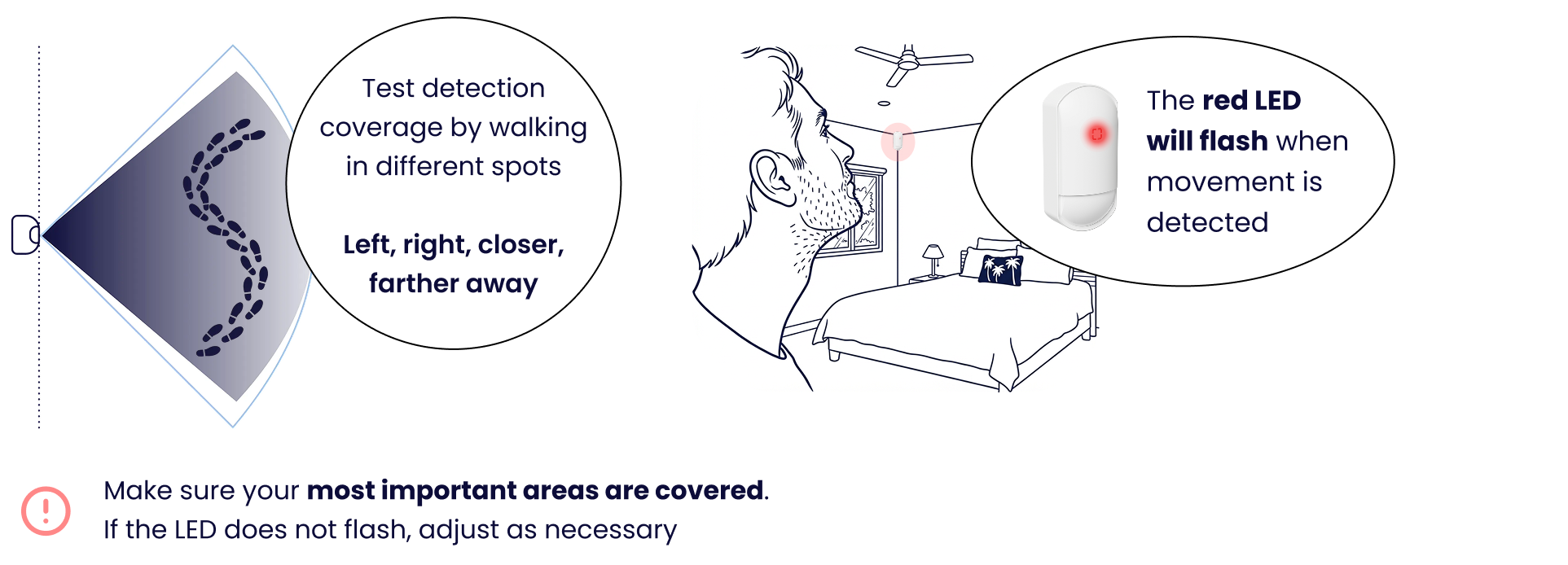
Enable Detection Test mode in-app or by opening and closing the cover, then walk through the area to verify coverage. The red LED will flash when movement is detected. Adjust positioning if needed.
Troubleshooting

Why won't my Olarm FlipX pair to the HUB?
  • Scan the QR code or enter the serial first so the Olarm HUB listens for that specific device.
  • Insert the CR123A only when prompted (pairing mode).
  • If it fails: move closer to the Olarm HUB, remove the battery, wait a few seconds, reinsert, and retry.
Why does the Olarm FlipX keep dropping offline / showing weak signal?
  • Olarm HALO signal may be poor at the mounting spot (corners, metal, dense walls).
  • Check signal strength in the app before final mounting.
  • Relocate the device slightly or adjust HUB placement — small moves can make a big difference.
Why is the Olarm FlipX detecting too wide / picking up outside the area I want?
  • You may be in Wide mode (12 m / 85°) when Narrow mode is needed.
  • Flip the lens to Narrow mode (18 m / 5° curtain) to restrict detection to a passage or entry line.
  • Re-aim using the bracket if the beam is clipping unwanted areas.
How do I confirm whether it's Wide or Narrow mode after mounting?
  • The app shows the current mode on the device status page.
  • Verify before closing the housing, then walk test.
Why is the Olarm FlipX missing movement / not detecting?
  • Confirm mounting height is 2–3 m (too high = creep zones; too low = pet/heat triggers).
  • Confirm the lens mode is correct (Wide for rooms, Narrow for passages/entries).
  • Do a full walk test before leaving site.
Why does the Olarm FlipX detect sometimes depending on the direction a person walks?
  • In Narrow mode, “grazing” the curtain edge can cause inconsistent triggers.
  • Re-aim so the person fully crosses the curtain beam (not just clips it).
  • Use the bracket for precise alignment and repeat walk tests.
Why is there a dead zone close to the wall / near the mounting point?
  • The FlipX may be mounted too high or aimed incorrectly, creating a near-field blind spot.
  • Remount at 2–3 m and re-aim so the detection pattern intersects the approach path.
  • Walk test tight to the wall and across the intended route.
Why is the Olarm FlipX false alarming in the morning / when the sun comes up?
  • It’s likely facing a window, or sunlight is heating the floor/area in view.
  • Move it away from direct sunlight paths and avoid aiming at glass.
  • Avoid mounting near heaters or warm air drafts.
Why is the Olarm FlipX nuisance triggering near a fan / aircon vent / draft?
  • Rapid temperature shifts and moving warm air can cause false triggers.
  • Relocate away from vents, fans, and airflow corridors.
  • If using the RDT model, reduce PIR/microwave sensitivity in the app after placement is correct.
Why can't I change settings / remove the device in the app?
  • You must be the primary user to adjust certain settings and to remove/unpair/reset.
  • Log in as the primary user or request primary access from the site owner/admin.
Why is the Olarm FlipX battery draining faster than expected?
  • Busy zones + short battery-saving time = more triggers and higher drain.
  • Increase battery saving time in-app (longer delay between triggers).
  • Fix nuisance triggers and check HALO signal quality.
Why is tamper not working reliably?
  • Don’t mount with glue/tape — it can prevent proper tamper engagement.
  • Ensure the housing closes firmly and the unit is mounted to a solid surface.

Still need help ?

Contact Support

On this page